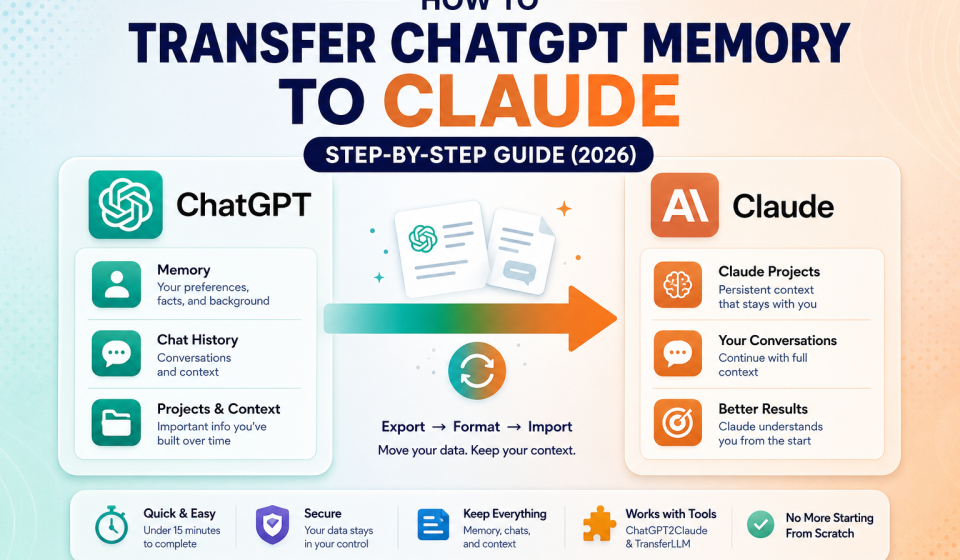

TL;DR: ChatGPT and Claude don’t share memory natively. But tools like ChatGPT2Claude and TransferLLM make the switch smooth. This guide walks you through three methods with and without tools so you don’t lose the context you’ve built.
You’ve spent months getting ChatGPT to know you. Your writing style. Your projects. Your preferences. It finally feels like a tool that gets you.
Then you hear about Claude. You want to try it. But the thought of starting from scratch? That’s enough to make anyone stay put.
Here’s the thing you don’t have to start over. Tools like ChatGPT2Claude and TransferLLM exist specifically to solve this problem. And even without a tool, there’s a manual method that works in under 10 minutes.
This guide shows you exactly how to transfer your ChatGPT memory, chat history, and context to Claude. Step by step. No fluff.
What Does “Transferring ChatGPT Memory to Claude” Actually Mean?
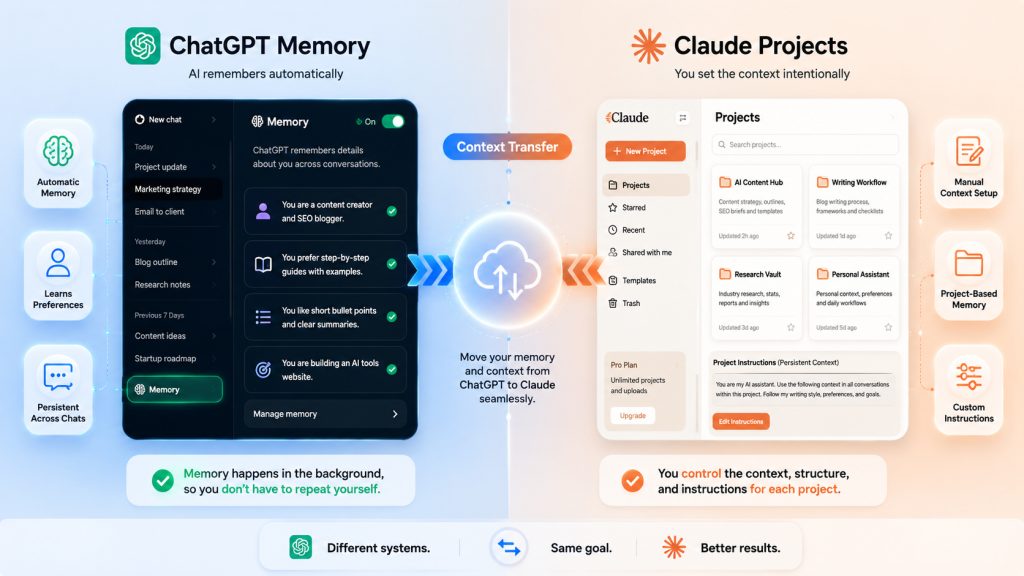
Before jumping into the steps, it helps to understand what you’re actually moving and why it’s not as simple as copy-paste.
How ChatGPT Memory Works
ChatGPT’s memory feature lets the AI remember facts about you across conversations. Your name, job, communication style, ongoing projects. ChatGPT stores all of it and pulls it in automatically. You can view, edit, and delete these memory entries anytime from your settings.
How Claude Handles Memory and Context
Claude works differently. It doesn’t maintain automatic memory across sessions by default. Instead, Claude uses Claude Projects, a feature that lets you store persistent instructions, background context, and reference material that stays active throughout a project. Think of it as manual memory you control completely.
Why These Two Systems Are Different
ChatGPT memory runs in the background automatically. Claude Projects requires you to set it up intentionally. Neither approach is better, they’re just different. But that difference means you can’t hit a button and migrate everything instantly. You need a process.
That process is exactly what this guide covers.
Why People Are Switching from ChatGPT to Claude
More users are making the move every month. The reasons vary, but a few patterns show up consistently.
What Claude Does Well
Claude handles long documents exceptionally well. Its context window is large, its responses tend to be more nuanced on complex topics, and many users find its writing output feels more natural. For research-heavy work, legal or technical writing, and creative projects, Claude often outperforms ChatGPT.
The Biggest Frustration When Switching
The number one complaint? Losing context. Users who’ve built detailed ChatGPT memory profiles with specific preferences, project details, and personal background feel like they’re handing a new hire a blank onboarding doc. Everything has to be re-explained.
What You Actually Lose (and What You Don’t)
You lose the automatic memory behavior. You don’t lose the information itself. Your ChatGPT data is exportable. Your conversation history is downloadable. Everything you’ve told ChatGPT can be extracted, formatted, and given to Claude. The tools below make that process fast.
Tools That Make the Transfer Possible
Two tools stand out for ChatGPT-to-Claude migration: ChatGPT2Claude and TransferLLM.
What Is ChatGPT2Claude?
ChatGPT2Claude is a dedicated migration tool built specifically to move your ChatGPT memory and conversation data into a Claude-compatible format. It takes your exported ChatGPT data, processes it, and outputs a structured context block you can drop directly into Claude Projects or a system prompt.
What Is TransferLLM?
TransferLLM is a broader platform designed for migrating data between large language models. It supports multiple AI platforms and handles larger data sets. If you have extensive chat history or complex memory profiles, TransferLLM gives you more flexibility in how you manage and filter what gets transferred.
How These Tools Compare
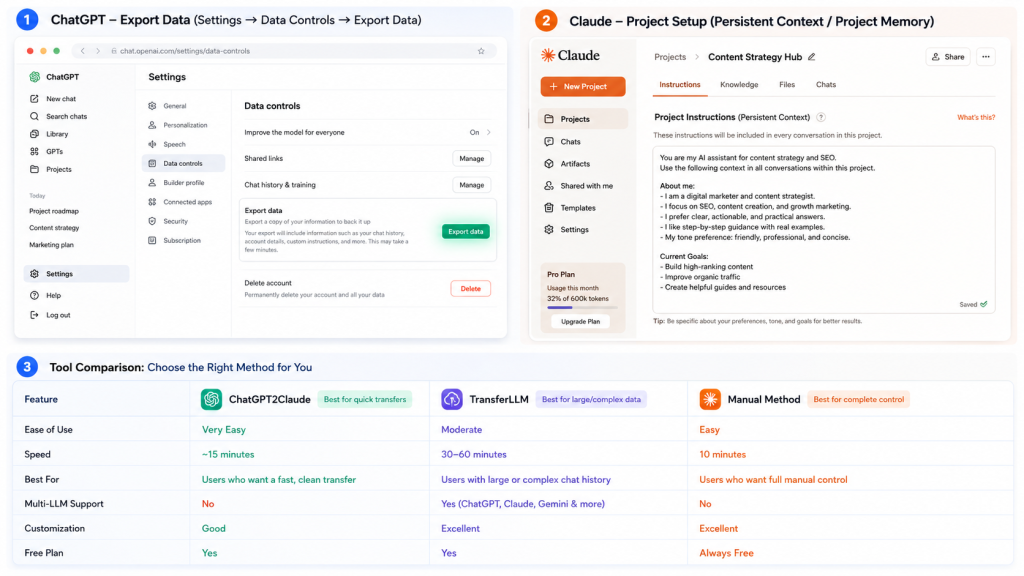
| Feature | ChatGPT2Claude | TransferLLM |
| Ease of use | Very simple | Moderate |
| Best for | Quick memory transfer | Large or complex data sets |
| Supports other LLMs | No | Yes |
| Output format | Claude-ready context block | Multiple formats |
| Free tier available | Yes | Yes |
Which tool should you use?
If you want a fast, focused transfer of ChatGPT memory to Claude, start with ChatGPT2Claude. If you have hundreds of conversations or plan to switch between multiple AI tools, TransferLLM gives you more control.
How to Transfer ChatGPT Memory to Claude Using ChatGPT2Claude
This is the fastest method for most users. The whole process takes about 15 minutes.
Step 1: Export Your ChatGPT Data
Open ChatGPT and go to Settings → Data Controls → Export Data. Click the export button. OpenAI will send a download link to your registered email within a few minutes. The file arrives as a ZIP containing your full chat history and memory entries in JSON format.
What’s inside the export file:
- conversations.json: your full chat history
- memory.json: saved memory entries
- user.json: basic account data
You only need conversations.json and memory.json for this transfer.
Step 2: Prepare Your Memory and Context
Open your memory.json file. You’ll see a list of facts ChatGPT has stored about you. Not all of it is worth transferring. Go through the list and keep entries that are actually useful to your communication style, active projects, professional background, recurring preferences.
Delete outdated entries, one-off notes, and anything irrelevant to how you use Claude. A clean, focused context file works better than a bloated one.
Step 3: Use ChatGPT2Claude to Format the Transfer
Upload your cleaned memory file to ChatGPT2Claude. The tool processes your data and converts it into a structured context block formatted for Claude. This output is designed to work directly inside Claude Projects or as a system-level instruction.
Review the output before using it. Make sure the formatting looks clean and the information reads naturally. Adjust anything that looks robotic or overly technical.
Step 4: Set Up Claude to Receive Your Context
Open Claude and create a new Project. Paste the formatted context block from ChatGPT2Claude into the project instructions field. This is now your persistent memory layer inside Claude.
Every conversation you start within this Project will have access to that context automatically, no need to re-explain yourself each time.
Step 5: Test and Refine Your Claude Setup
Start a conversation inside your new Project and run a few tests. Ask Claude to summarize what it knows about you. Ask it to write something in your preferred tone. Check whether it picks up on your project context correctly.
Sample test prompts:
- “What do you know about my current projects?”
- “Write a short email in my usual communication style.”
- “What are my top priorities based on the context I’ve provided?”
Refine your Project instructions based on the responses. This usually takes two or three iterations before everything feels right.
How to Transfer ChatGPT Chats to Claude Using TransferLLM
If you have a large volume of conversations or want more control over what gets migrated, TransferLLM is the better option.
What TransferLLM Does Differently
TransferLLM lets you filter conversations by date, topic, or keyword before exporting. This means you can transfer only the most relevant chats rather than your entire history. It also supports multiple output formats, so you can use the same export for Claude, Gemini, or any other platform.
Step-by-Step: Using TransferLLM
- Upload your ChatGPT export ZIP directly to TransferLLM
- Use the filtering tools to select which conversations to include
- Choose “Claude” as your target platform
- Download the formatted output file
- Paste the output into Claude Projects or your custom instructions
Handling large chat histories:
If you have years of ChatGPT conversations, don’t transfer everything. Focus on the last three to six months of active use, plus any conversations that contain key decisions, preferences, or project context.
Limitations to Know
TransferLLM works well for structured data. It handles memory entries and clean conversation threads smoothly. Very long, unstructured conversations may require manual editing after export. Always review the output before loading it into Claude.
How to Manually Transfer ChatGPT Data to Claude (No Tools Needed)
No tools? No problem. This method works for anyone and takes less than 10 minutes.
The Copy-Paste Method
Open your ChatGPT memory panel (Settings → Personalization → Memory). Read through your saved memories. Open a text document and write a clean summary of the key points: your background, preferences, active projects, and working style.
Keep it under 400 words. The goal is a focused context snapshot, not a biography.
Creating a “Memory Summary” Prompt for Claude
Use this template to hand off your context to Claude:
“Here is some background context about me. Please use this throughout our conversations:
Name: [Your name] Profession: [Your role or field] Current projects: [Brief description] Communication style: [How you prefer responses: formal, casual, concise, detailed] Key preferences: [Anything Claude should always remember] Goals: [What you’re primarily using Claude for]
Acknowledge this context and confirm you have it before we begin.”
Paste this into your Claude Project instructions. Done. Claude will treat this as persistent context for every conversation inside that project.
Using Claude’s Custom Instructions Feature
For users on Claude’s paid plans, custom instructions let you store a permanent context layer that applies across all conversations, not just within a specific Project. This is ideal for your most fundamental preferences and background information.
Common Problems When Transferring from ChatGPT to Claude
Even with the right tools, a few issues come up regularly.
Claude Doesn’t Remember Between Sessions
If you’re not using Claude Projects or custom instructions, Claude starts fresh every conversation. This is expected behavior, not a bug. The fix is simple always work inside a Project that contains your context.
Formatting Issues After Export
JSON files from ChatGPT sometimes include formatting characters that look messy when pasted into Claude. Before loading your context, paste it into a plain text editor (like Notepad or TextEdit) first to strip any unwanted formatting. Then copy from there into Claude.
Memory Gaps and How to Fill Them
Your ChatGPT export may not capture everything, especially context you communicated through conversation rather than saved memory. If Claude seems to be missing something, add it manually to your Project instructions.
Quick fix prompt: “I want to add some context you should know. [Add the missing information.] Please update your understanding accordingly.”

Key Takeaways
- ChatGPT and Claude use completely different memory systems a direct transfer doesn’t exist natively
- ChatGPT2Claude is the fastest tool for moving memory to Claude; TransferLLM is better for large or complex transfers
- The manual method works without any tools and takes under 10 minutes
- Claude Projects is your equivalent to ChatGPT memory set it up first before anything else
- Always export your ChatGPT data from Settings → Data Controls → Export Data
- Clean your memory file before transferring quality beats quantity every time
- Test your Claude setup with a few targeted prompts and refine until it feels right
Frequently Asked Questions
Can you transfer ChatGPT memory to Claude directly?
Not natively. ChatGPT and Claude use different memory architectures. Tools like ChatGPT2Claude and TransferLLM bridge that gap by converting your data into a Claude-compatible format.
Does Claude have a memory feature like ChatGPT?
Yes. Claude uses Claude Projects to store persistent context. It requires manual setup but gives you full control over what Claude remembers.
Is ChatGPT2Claude free to use?
ChatGPT2Claude offers a free tier. Check the official site for current pricing and plan limits.
How do I export my ChatGPT data?
Go to ChatGPT Settings → Data Controls → Export Data. OpenAI sends a download link to your email, usually within minutes.
Will Claude remember my preferences after I transfer?
Yes, as long as you store that context inside Claude Projects or custom instructions. Without that setup, Claude resets with each new conversation.
Is it safe to transfer ChatGPT data to Claude?
Use trusted tools only. Review each tool’s privacy policy before uploading your data. Avoid including sensitive personal, financial, or confidential professional information in any transfer.
What is the best way to switch from ChatGPT to Claude?
Use ChatGPT2Claude for a quick, clean transfer. Set up Claude Projects immediately. Test with a few prompts and refine your context over the first few days of use.
If you rely on AI daily, preserving context matters. Start with a small export today and build a Claude setup that actually remembers how you work.