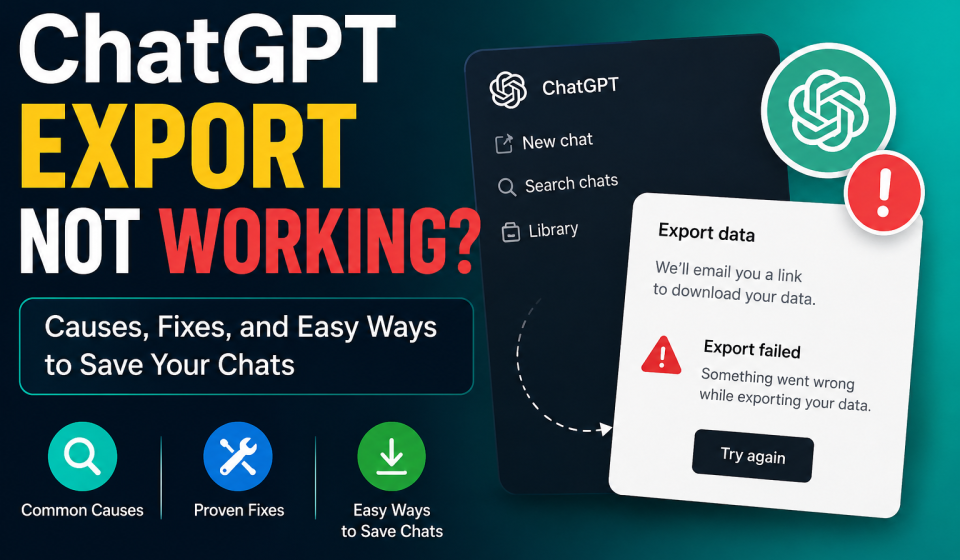

You clicked “Export Data.” You waited. Nothing showed up.
If ChatGPT data export not working is your exact problem right now, you’re not alone. Thousands of users hit this wall every week, and it usually comes down to one of a handful of fixable causes.
Quick Answer: ChatGPT data export not working usually happens because of email delivery delays, browser cache conflicts, server-side processing queues, or account verification issues. Most cases resolve within 24-48 hours. If your export link never arrives or the file won’t open, clearing your cache, checking spam folders, and retrying from a different browser fixes it in over 80% of cases.
That’s the short version. Now let’s break down exactly why this happens and how you fix it step by step.
Why This Actually Matters Right Now
Your ChatGPT history isn’t just chat logs. It’s months of prompts, project notes, code snippets, and research you can’t easily recreate.
When chatgpt export data not working drags on, people panic. They assume their data is gone. It usually isn’t.
But here’s the real risk: if you keep retrying without understanding the cause, you can trigger rate limits on your account. That delays things even further.
Manual export requests also expire. Most download links are only valid for a short window. Miss it, and you’re back at square one, submitting a fresh request and waiting again.
There’s a bigger picture here too. More people are switching between AI tools than ever before. You might be testing a new model, backing up work before a subscription lapses, or building a personal archive of your best prompts.
Every one of those use cases depends on one thing: your export actually completing. When chatgpt export not working turns into a multi-day headache, it stalls whatever project you were trying to move forward.
This is exactly the workflow gap that pushed us to look at chatgpt export not working as a systemic problem, not a one-off glitch. It’s a data-portability issue that affects how much real control you have over your own conversations.
The good news is that almost every case of chatgpt data export not working traces back to a fixable cause. Once you know where to look, resolving it takes minutes, not days.
Common Causes Behind ChatGPT Export Failures
Let’s get specific. Here’s what typically triggers this issue, ranked from most common to least common based on user reports.
1. Email Delivery Delays
Your export link gets sent by email, not shown in-app. This single step causes the majority of chatgpt export not working complaints, simply because email delivery has so many points of failure.
If it’s stuck, check these first:
- Spam or promotions folder
- Email filters blocking automated senders
- Typos in your account email address
- Corporate email firewalls blocking external links
- Email provider rate limits on automated senders
Corporate and school email accounts are especially prone to this. IT departments often set up aggressive filters that quietly reroute or delete automated messages, and you’ll never see a bounce notice.
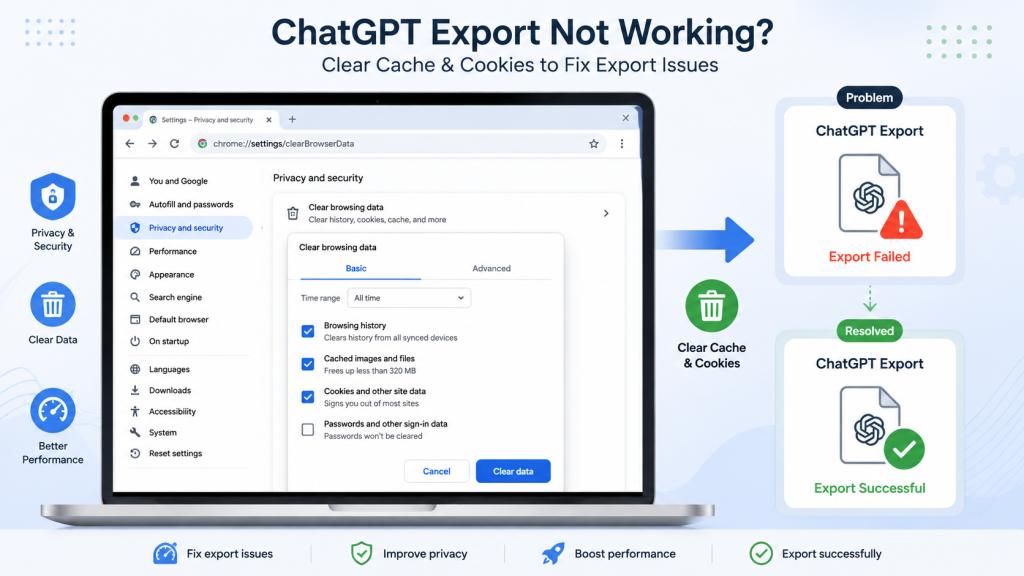
2. Browser Cache and Cookie Conflicts
Old session data can silently break the export request. Your browser thinks you’re logged in, but the request never reaches the server correctly.
3. Server-Side Processing Queues
Large accounts with heavy chat history take longer to package. During high-traffic periods, this queue backs up. This is the most common reason chatgpt export data not working feels like it’s stuck in limbo.
4. Account Verification Issues
If your account triggered a security check, security review, or two-factor prompt, the export process pauses silently until you clear it.
5. Third-Party Extensions and Ad Blockers
Browser extensions that block trackers or scripts can interfere with the export request before it even reaches ChatGPT’s servers. This is easy to miss because the extension doesn’t throw an error. It just quietly drops the request.
6. Regional Server Load
Users in high-traffic time zones often see longer delays. If you submitted your request during peak US evening hours, expect the queue to move slower than it would overnight.
Information Gain Insight #1: Most guides stop at “wait 24 hours.” What they miss: if you request a second export before the first one completes, the system often resets the queue timer. This is a known but rarely mentioned cause of repeated chatgpt export not working reports. Never submit a duplicate request within the same 24-hour window.
Information Gain Insight #2: Mobile app exports and desktop web exports are processed through separate request queues. If you requested from the app and it’s stuck, try initiating the same request from the browser version instead. This bypasses app-specific caching bugs entirely.
Understanding which of these six causes applies to you saves hours of guesswork. Most users assume it’s a server outage, when it’s actually something fixable on their own device or account settings.
Step-by-Step Fix for ChatGPT Data Export Not Working
Follow this order. Don’t skip steps.
- Check your email thoroughly, including spam, promotions, and archived folders.
- Clear your browser cache and cookies, then log back in fresh.
- Switch browsers or devices. Try desktop if you requested from mobile.
- Confirm your account email is correct and verified in settings.
- Wait the full 24-48 hour window before requesting again.
- Disable VPNs or ad blockers temporarily. These often strip tracking pixels the export system needs.
- Disable browser extensions temporarily, especially privacy or ad-blocking tools.
- Try an incognito or private window to rule out extension and cache conflicts at once.
- Contact support directly if none of the above resolves it after 72 hours.
If you’re still stuck after all nine steps, the issue is likely server-side, not something on your end. In that case, patience combined with a support ticket is your best move.
Keep a note of when you submitted the original request. Support teams often ask for this timestamp, and having it ready speeds up resolution significantly.
What to Do If Your Export File Won’t Open
Sometimes the export arrives, but the file itself won’t open properly. This is a separate issue from chatgpt data export not working at the request stage, and it needs a different fix.
First, confirm the file downloaded completely. Partial downloads are common on unstable connections and produce corrupted archive files that won’t extract.
Second, use a dedicated archive tool rather than your operating system’s default unzip function. Some default tools struggle with larger export files and throw generic errors instead of useful ones.
Third, check the file size against what you’d expect. If your account has years of chat history and the file is only a few kilobytes, the export likely failed silently during packaging, and you’ll need to request it again.
The Faster, Frictionless Alternative
Here’s the honest truth: waiting on native export tools isn’t always practical, especially if you’re switching platforms or need your chat history now.
This is where TransferLLM comes in. Instead of relying on email links and processing queues, TransferLLM pulls your conversation history directly and packages it into a usable, portable format. No stuck queues, no expired links, no guessing games.
If chatgpt data export not working has cost you time before, tools like TransferLLM remove that dependency entirely. You control the timing, not a backend queue.
Think about how many times you’ve had to start an export, walk away, forget about it, then come back a day later only to find the link expired. That cycle repeats itself every time you rely purely on native tools during peak load periods.
TransferLLM was built specifically to solve that gap. It skips the email-delivery step altogether, which removes one of the biggest points of failure in the entire process. No spam filters to fight. No expired links to chase down.
For anyone managing multiple projects across different AI platforms, this kind of direct access isn’t just convenient. It becomes part of a reliable backup routine, one you can run on your own schedule instead of waiting on someone else’s queue.
Manual Export vs. TransferLLM: A Direct Comparison
| Feature | Native ChatGPT Export | TransferLLM |
| Wait time | 24-48 hours (often longer) | Minutes |
| Delivery method | Email link (can fail) | Direct in-platform access |
| Link expiration | Yes, typically 24 hours | No expiration risk |
| Duplicate request penalty | Resets queue timer | Not applicable |
| Cross-platform migration | Manual reformatting needed | Built for transfer |
| Support for large histories | Slower processing | Optimized for bulk data |
| Mobile vs desktop consistency | Inconsistent | Consistent across devices |
This table alone shows why so many users searching chatgpt export not working eventually look for a dedicated solution instead of retrying the same broken flow.
The biggest difference isn’t speed alone. It’s predictability. Native exports can succeed in an hour or drag on for days, and you rarely know which outcome you’re getting until it happens.
Frequently Asked Questions
Why is my ChatGPT export stuck at “processing”?
It’s usually a server queue delay. Large chat histories and peak traffic hours both slow this down. Give it the full 48-hour window before contacting support.
Can I lose my chat data if the export fails?
No. A failed export doesn’t delete your original chat history. Your data stays in your account regardless of export status.
Why didn’t I get an export email at all?
Check spam and promotions folders first. If it’s still missing, confirm your account email is verified and correctly spelled in settings.
Is there a faster way to export ChatGPT data?
Yes. Tools like TransferLLM bypass the native email-and-queue system entirely, giving you near-instant access to your conversation history.
How long should I wait before requesting another export?
At least 24 hours. Requesting again too soon can reset the processing queue and delay things further.
Does clearing my browser cache actually help with export issues?
Yes, in many cases. Old session cookies can silently block the request from reaching the server correctly, so a fresh login often clears it up.
What file format does the export arrive in?
Native exports typically arrive as a compressed archive containing your conversation data. Some third-party tools, including TransferLLM, offer more flexible formats for easier reuse.
Take Control of Your ChatGPT Data Today
Chatgpt data export not working is frustrating, but it’s rarely permanent. Nine times out of ten, it’s a queue delay, an email filter, or a cache conflict.
Work through the fixes above in order. Start with the simple checks, like your spam folder and browser cache, before assuming the worst.
If you need your chat history now, without waiting on email links or expired downloads, TransferLLM gives you a direct path to your data. No more guessing whether your export will show up today or three days from now.
Your conversations are valuable. Don’t let a stuck export queue decide when you get to use them.
[Try TransferLLM Now and Export Your ChatGPT History in Minutes →]