Gemini Import Failed? Complete Guide to Fix Import Errors and Transfer ChatGPT Conversations

Have you tried importing your conversations into Google Gemini only to see the message “Gemini import failed”? You are not alone. Many users run into this issue when they move conversations from ChatGPT or another AI platform. The error can stop your workflow and make you worry about losing valuable prompts, research, or project history.
The good news is that most import errors have a simple solution. In many cases, the problem comes from an unsupported file format, a damaged export file, browser issues, or temporary server problems. Once you identify the cause, you can usually complete the import without much effort.
If you regularly switch between AI assistants, using a dedicated conversation migration platform like TransferLLM can make the process much smoother. Instead of dealing with manual imports and compatibility issues, you can move your AI conversations with fewer errors and better organization.
This guide explains why the Gemini import failed error happens, how to fix it step by step, and what you can do to avoid similar problems in the future.
Quick Answer: How Do You Fix the “Gemini Import Failed” Error?
The Gemini import failed error usually happens because of an unsupported file format, a corrupted export, browser issues, a large file size, or temporary server problems. You can fix it by downloading a fresh export, checking the file format, using a supported browser, reducing the file size if needed, clearing your browser cache, and trying the import again. If you frequently move conversations between AI platforms, TransferLLM offers a more reliable way to migrate your chat history.
Why Does the “Gemini Import Failed” Error Appear?
The error message is simple, but the reason behind it can vary. Gemini checks every uploaded file before processing it. If something does not meet its requirements, the import stops.
Understanding the cause helps you solve the issue faster.
What Does the Error Actually Mean?
The message “Gemini import failed” means Gemini could not complete the import process. The platform detected a problem before it could read or process the uploaded conversation.
This does not always mean your file is damaged. It may simply be incompatible with Gemini’s current import requirements.
When Do Users Usually See This Error?
Users commonly report this error when they:
- Import exported ChatGPT conversations
- Upload large conversation archives
- Transfer multiple conversations at once
- Upload unsupported file types
- Experience browser or network interruptions
- Use outdated export files
If your import fails during any of these situations, the problem is usually easy to identify.
Common Signs of an Import Problem
You may notice one or more of these symptoms:
- The upload stops before completion.
- Gemini displays an “Import Failed” message.
- The file uploads but never finishes processing.
- The conversation appears incomplete after import.
- Gemini rejects the uploaded file immediately.
These signs often point to a compatibility or validation issue rather than permanent data loss.
Top Reasons Gemini Import Fails
Several technical issues can trigger an import error. Below are the most common causes and the steps you can take to resolve them.
Unsupported File Format
Gemini only accepts certain file formats for imports. If your exported conversation uses a format that Gemini does not recognize, the upload will fail.
For example, some exported conversation files may contain extra metadata or structures that Gemini cannot process correctly.
How to Fix It
- Verify the file format before uploading.
- Export your conversations again if necessary.
- Remove unsupported file modifications.
- Follow the latest import recommendations from Google.
Corrupted Export File
A damaged file is another common reason for import failures.
The file may become corrupted during download, transfer, compression, or storage. Even a small change in the file structure can prevent Gemini from reading it.
How to Fix It
- Download a fresh export.
- Avoid editing exported files manually.
- Store exports in a reliable location.
- Check whether the file opens correctly before uploading.
Large File Size
Very large conversation archives may exceed upload limits or take longer to process.
Long conversations, attached files, and multiple chat histories can increase file size significantly.
How to Fix It
- Split large exports into smaller files if possible.
- Remove unnecessary conversations.
- Upload conversations individually instead of all at once.
Smaller files usually process faster and have a lower chance of failing.
Browser Compatibility Issues
Your browser plays an important role during the upload process.
Older browser versions or incompatible extensions can interrupt file uploads.
Common Browser Problems
- Outdated browser version
- Disabled JavaScript
- Aggressive privacy extensions
- Upload interruptions
- Corrupted browser cache
How to Fix It
- Update your browser.
- Try Google Chrome or another supported browser.
- Disable unnecessary extensions temporarily.
- Refresh the page before uploading again.
Google Account Issues
Sometimes the problem is not the file itself. Your Google account session may have expired or experienced a temporary authentication issue.
This can interrupt the upload before Gemini finishes processing your file.
How to Fix It
- Sign out of your Google account.
- Sign in again.
- Open Gemini in a new browser window.
- Retry the upload.
Temporary Gemini Server Problems
Cloud services occasionally experience temporary outages or increased traffic.
If Gemini’s servers are under heavy load, uploads may fail even if your file is completely valid.
Signs of a Server Issue
- Multiple upload attempts fail.
- Different files produce the same error.
- Other Gemini features respond slowly.
- The issue resolves later without any changes.
In this situation, waiting a short time before trying again is often the best solution.
Incomplete ChatGPT Exports
Sometimes the exported conversation itself is incomplete.
This can happen if the export process is interrupted or if only part of the conversation history downloads successfully.
An incomplete export may contain missing sections that prevent Gemini from processing the file correctly.
Solution
Always verify that your export finishes successfully before uploading it.
Invalid Conversation Structure
Every AI platform stores conversations differently.
A file generated for one platform may not match another platform’s expected structure.
Even if the file appears normal, Gemini may reject it because the conversation format does not match its requirements.
This is one reason many professionals use TransferLLM, which prepares conversation data for smoother migration between AI platforms.
How to Fix Gemini Import Failed Step by Step
Follow these troubleshooting steps in order. Most users solve the issue before reaching the final step.
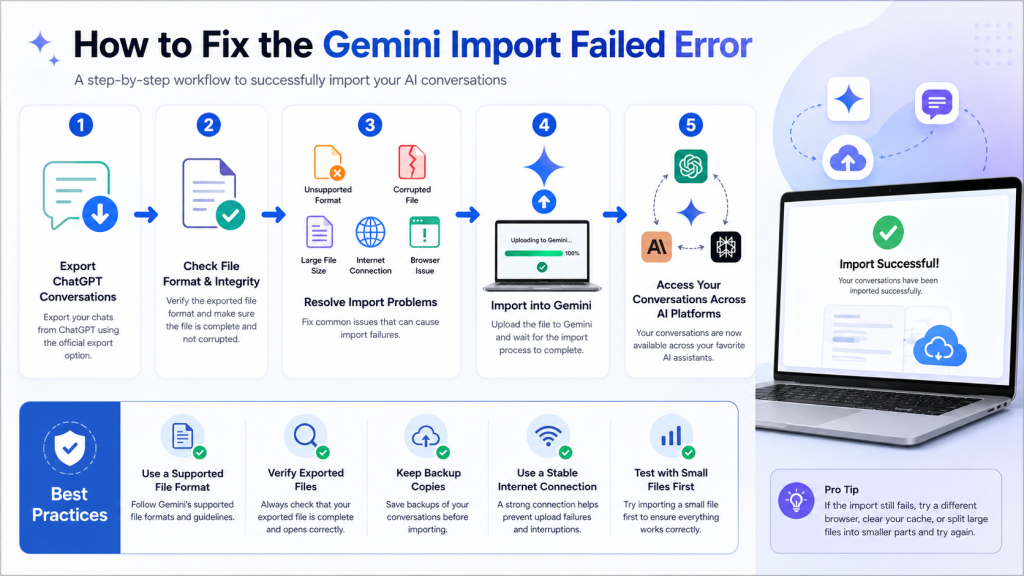
Step 1: Verify Your Exported File
Start by checking the file you want to upload.
Confirm that:
- The download completed successfully.
- The file is not empty.
- The file extension matches the expected format.
- The archive opens correctly.
If anything looks unusual, download a new export.
Step 2: Download the Export Again
A fresh export often solves unexpected import problems.
During the export process:
- Use a stable internet connection.
- Wait until the download finishes completely.
- Avoid interrupting the process.
- Save the file in a secure folder.
Uploading a newly generated export eliminates many hidden file issues.
Step 3: Use a Supported Browser
Modern browsers handle large uploads more reliably.
For the best experience:
- Update your browser to the latest version.
- Open a private browsing window.
- Disable unnecessary browser extensions.
- Close unused tabs to free up memory.
These small changes can improve upload stability.
Step 4: Reduce the File Size
If your export contains hundreds of conversations, consider uploading smaller batches instead.
You can:
- Remove conversations you no longer need.
- Archive older chats separately.
- Split exports into manageable files.
Smaller uploads finish faster and reduce processing errors.
Step 5: Check Your Internet Connection
Large conversation files require a stable connection.
If your connection drops during the upload, Gemini may stop processing the file before it finishes.
A wired connection or a reliable Wi-Fi network usually provides better upload performance than unstable mobile networks.
Step 6: Clear Your Browser Cache
Old cached files sometimes interfere with uploads.
Clearing your browser cache removes outdated data that may be causing conflicts.
After clearing the cache:
- Restart the browser.
- Sign in again.
- Upload the file one more time.
Many users find that this simple step resolves unexpected upload issues.
Step 7: Try Another Google Account
If the problem continues, test the upload using another Google account.
This helps determine whether the issue is related to your account or the uploaded file.
If the second account works, the original account may have a temporary synchronization or permission issue.
Step 8: Wait and Try Again Later
If everything else looks correct, the issue may be on Gemini’s side.
Temporary service interruptions usually resolve without any action from you.
Waiting a short time before uploading again is often enough to complete the import successfully.
Can You Import ChatGPT Conversations Directly into Gemini?
Many users expect to export their ChatGPT conversations and upload them directly into Gemini. In practice, the process is not always that simple. ChatGPT and Gemini are built by different companies, and they store conversation data in different formats.
As a result, a file that works perfectly on one platform may not be accepted by another. This is one of the main reasons users encounter the Gemini import failed error.
If you frequently switch between AI assistants, understanding these limitations can save you time and reduce frustration.
Current Limitations
At the time of writing, there is no universal standard for transferring AI conversations between platforms.
Each AI assistant uses its own:
- Conversation structure
- Metadata format
- File validation rules
- Import requirements
- Processing methods
Because of these differences, exporting a conversation from ChatGPT does not always guarantee a successful import into Gemini.
Some exports may require additional formatting or conversion before Gemini can process them correctly.
Supported Methods
If you want to move conversations into Gemini, follow these best practices:
- Use official export methods whenever available.
- Verify that the exported file is complete.
- Keep the original file unchanged.
- Follow Google’s latest import guidelines.
- Test with a small conversation before uploading a large archive.
Starting with a small file helps you confirm that the import process works before you upload hundreds of conversations.
Unsupported Methods
Many users accidentally create import problems by trying unsupported approaches.
Avoid these practices:
- Editing exported files manually
- Renaming file extensions
- Uploading incomplete exports
- Combining multiple export files into one
- Using third-party converters that change the file structure
These shortcuts often create formatting issues that Gemini cannot process.
The Easier Solution: Transfer ChatGPT Conversations with TransferLLM
If you regularly use multiple AI assistants, manual imports can quickly become time-consuming. Every platform has different requirements, and troubleshooting failed imports can interrupt your workflow.
TransferLLM is designed to simplify AI conversation migration. Instead of manually preparing files for different platforms, you can transfer conversations through a process built for cross-platform compatibility.
Whether you want to organize your AI workflow or preserve valuable chat history, TransferLLM helps reduce the effort involved in moving conversations.
How TransferLLM Works
TransferLLM focuses on making AI conversation migration simple and reliable.
The general workflow looks like this:
- Export your conversations from the source AI platform.
- Upload the exported data to TransferLLM.
- Process and prepare the conversations for the destination platform.
- Transfer the conversations using a structured migration workflow.
- Continue working without rebuilding your chat history from scratch.
This approach reduces many of the compatibility issues that cause manual imports to fail.
Benefits Over Manual Import
Manual imports often require repeated testing and troubleshooting.
TransferLLM offers several advantages:
- Faster conversation migration
- Reduced formatting problems
- Better organization of conversation history
- Fewer manual steps
- Improved workflow efficiency
- Lower chance of import errors
- Easier management of multiple AI platforms
Instead of spending time fixing file issues, you can focus on your work.
Supported AI Workflow
Many professionals now use more than one AI assistant for different tasks.
For example:
- ChatGPT for brainstorming
- Gemini for Google Workspace integration
- Claude for long-form writing
- Perplexity for research
Managing conversations across multiple platforms becomes much easier when your chat history stays organized.
TransferLLM supports this growing multi-AI workflow by helping users move conversations more efficiently.
Who Should Use TransferLLM?
TransferLLM is useful for:
- Content creators
- Developers
- Researchers
- Marketing teams
- Students
- Business professionals
- AI power users
- Agencies
- Consultants
Anyone who wants to preserve valuable AI conversations can benefit from a dedicated migration solution.
Typical Migration Workflow
A successful migration usually follows these steps:
- Export conversations.
- Verify the exported data.
- Upload the files.
- Complete the migration process.
- Review imported conversations.
- Continue working without losing important context.
A structured workflow reduces mistakes and improves consistency.
Common Gemini Import Errors and Their Solutions
The Gemini import failed message can appear in different forms. Understanding the specific error makes troubleshooting much easier.
Upload Failed
Possible Causes
- Weak internet connection
- Interrupted upload
- Browser issue
- Temporary server problem
Solution
- Refresh the page.
- Restart the upload.
- Use a stable connection.
- Try another browser if needed.
Unsupported File
Possible Causes
- Incorrect file format
- Modified export
- Invalid file extension
Solution
- Download a fresh export.
- Keep the original file unchanged.
- Verify the supported format before uploading.
Processing Failed
Possible Causes
- Corrupted file
- Incomplete export
- Temporary system issue
Solution
- Generate a new export.
- Test with a smaller file.
- Retry after some time.
Import Stops Midway
Possible Causes
- Large file size
- Browser memory limitations
- Network interruption
Solution
- Split the export into smaller files.
- Close unnecessary browser tabs.
- Restart the browser before uploading again.
File Cannot Be Read
Possible Causes
- Damaged archive
- Incorrect encoding
- Missing conversation data
Solution
- Download the export again.
- Verify the archive opens correctly.
- Avoid editing exported files.
Unknown Import Error
Sometimes Gemini displays a generic error without explaining the cause.
What You Can Do
- Try another browser.
- Sign out and back into your Google account.
- Wait for temporary server issues to resolve.
- Test with a different export file.
- Repeat the upload later.
A systematic approach usually helps identify the source of the problem.
Best Practices Before Importing Conversations
Preparing your conversation files before uploading them can prevent many common errors.
Organize Your Conversations
Review your exported chats before importing them.
Remove:
- Duplicate conversations
- Test chats
- Unnecessary archives
A cleaner export is easier to manage and process.
Remove Unnecessary Files
Large exports increase upload time and may trigger processing issues.
Keep only the conversations you actually need.
This makes the migration faster and more reliable.
Verify Every Export
Always confirm that:
- The export completed successfully.
- The file opens correctly.
- No files are missing.
- The archive is complete.
Checking these details only takes a few minutes and can prevent hours of troubleshooting.
Keep Backup Copies
Never rely on a single exported file.
Store backup copies in a secure location before starting the migration process.
If something goes wrong, you can quickly generate another import attempt without losing your conversation history.
Use a Stable Internet Connection
Large conversation archives require uninterrupted uploads.
A stable connection reduces the risk of incomplete uploads and processing failures.
Whenever possible:
- Use reliable Wi-Fi.
- Avoid switching networks during uploads.
- Keep the browser window open until the process finishes.
TransferLLM vs. Manual Import
If you only move one or two conversations occasionally, a manual import may be enough. However, if you frequently work across multiple AI platforms, a dedicated migration solution can save time and reduce errors.
| Feature | Manual Import | TransferLLM |
| Setup time | Longer | Faster |
| Workflow | Multiple manual steps | Streamlined process |
| File preparation | User-managed | Simplified |
| Risk of formatting issues | Higher | Lower |
| Large conversation handling | Can be challenging | More efficient |
| Multi-platform workflow | Limited | Designed for cross-platform use |
| Organization | Manual | Easier to manage |
| Productivity | Slower | Improved |
For users with extensive AI chat histories, reducing manual work can make a significant difference.
Expert Tips to Prevent Future Import Errors
Following a few simple habits can help you avoid import issues in the future.
Export Conversations Regularly
Do not wait until you have hundreds of important chats.
Create regular exports so your conversation history stays organized and easier to manage.
Keep Your Browser Updated
Modern browsers receive security updates, bug fixes, and performance improvements.
Using the latest version reduces compatibility issues during uploads.
Avoid Editing Export Files
Even small changes to exported files can break the expected structure.
Keep the original export unchanged unless the platform specifically recommends modifications.
Test Small Files First
Before importing a large archive, upload one small conversation.
If the test succeeds, you can continue with larger files more confidently.
Maintain Organized Archives
Instead of storing everything in one massive export, organize conversations into logical groups.
For example:
- Research
- Client projects
- Personal learning
- Marketing
- Development
- Business planning
Smaller, well-organized archives are easier to migrate and maintain.
Follow Official Platform Updates
Import features continue to evolve.
Review the latest documentation from the platform you are using to stay informed about new import capabilities, supported formats, and best practices.
Frequently Asked Questions
Why does Gemini say “Import Failed”?
Gemini displays this message when it cannot process the uploaded file. Common reasons include an unsupported file format, a corrupted export, an incomplete download, browser compatibility issues, or temporary server problems.
Can I import ChatGPT conversations directly into Gemini?
It depends on the format of the exported conversations and Gemini’s current import capabilities. Since ChatGPT and Gemini store conversations differently, direct imports are not always successful.
If you frequently move conversations between AI platforms, using a migration tool such as TransferLLM can simplify the process.
What file formats does Gemini support?
Supported file formats may change as Google updates Gemini. Before uploading your conversations, always review the latest documentation and ensure your exported file matches the supported requirements.
Why does my upload stop before it finishes?
An upload may stop because of:
- A slow or unstable internet connection
- A large file size
- Browser issues
- Temporary server interruptions
- Corrupted export files
Trying a smaller file often helps identify the source of the problem.
How can I reduce the chance of import errors?
You can improve your success rate by:
- Exporting conversations correctly
- Keeping the original file unchanged
- Using an updated browser
- Uploading smaller files
- Maintaining a stable internet connection
- Creating backup copies before importing
Is TransferLLM better than manually importing conversations?
If you only transfer conversations occasionally, manual imports may be sufficient.
However, users who regularly switch between ChatGPT, Gemini, Claude, or other AI assistants often prefer TransferLLM because it reduces manual work and helps streamline the migration process.
Can I transfer multiple conversations at once?
That depends on the platform and the size of your exported data.
If you’re importing a large archive, breaking it into smaller groups can improve reliability and reduce the likelihood of upload failures.
Will my conversation formatting stay the same?
Formatting depends on the destination platform and how it processes imported data.
Some formatting differences are expected because each AI assistant stores conversations differently.
Is it safe to back up AI conversations?
Yes. Keeping secure backups is one of the best ways to protect your work.
Store your exported files in trusted cloud storage or on a secure local drive so you can recover them if an import fails.
What should I do if none of the fixes work?
If you’ve tried all the troubleshooting steps and the issue continues:
- Generate a new export.
- Test the upload with a smaller file.
- Try another browser.
- Sign in with a different Google account.
- Wait and retry later in case of a temporary service issue.
- Contact the platform’s support team if the problem persists.
Working through these steps methodically often helps identify the root cause.
Final Thoughts
The Gemini import failed error can be frustrating, especially when you’re trying to move valuable AI conversations. Fortunately, most import issues have straightforward solutions.
In many cases, the problem comes down to file compatibility, browser settings, large exports, or temporary service interruptions. By checking your exported files, using a supported browser, and following the recommended troubleshooting steps, you can resolve many import failures quickly.
If you frequently switch between AI platforms, managing conversation history manually can become difficult over time. Exporting, validating, organizing, and importing files for every platform adds unnecessary work to your workflow.
That’s where TransferLLM can help.
Instead of spending time troubleshooting compatibility issues, you can use TransferLLM to simplify AI conversation migration and keep your important chat history organized. Whether you’re moving conversations for research, content creation, software development, marketing, or business operations, a structured migration process helps you maintain continuity without starting from scratch.
As AI tools continue to evolve, the ability to move conversations between platforms will become even more important. Building a habit of creating regular backups, organizing your conversations, and using reliable migration methods will help protect your work and improve your overall productivity.
If you’re planning to migrate conversations from ChatGPT to Gemini or between other AI assistants, taking the right approach today can save hours of troubleshooting tomorrow.
Ready to Transfer Your AI Conversations?
Don’t let import errors interrupt your workflow.
TransferLLM helps you migrate AI conversations more efficiently, preserve valuable chat history, and reduce compatibility issues when switching between AI platforms. Whether you’re a creator, developer, marketer, researcher, or business professional, you can keep your conversations organized and continue working with confidence.
Start using TransferLLM to make AI conversation migration faster, simpler, and more reliable.