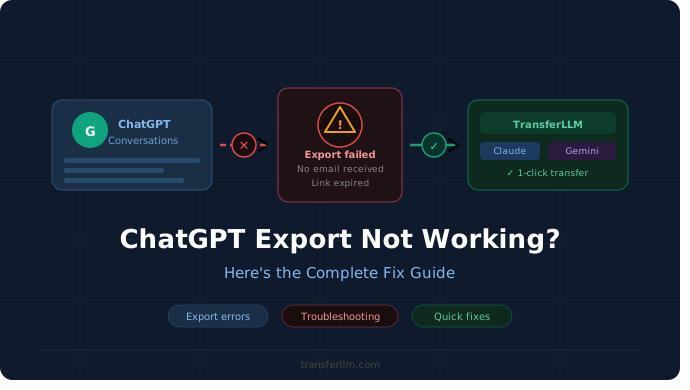

Picture this – you spent weeks having detailed conversations with ChatGPT. Research notes, project ideas, a whole thread where it helped you draft something important.
You finally decide to save it all. You go to Settings, hit Export Data, and then… nothing. No email. No download. Just silence.
That moment of panic is real. And honestly? It happens to a lot of people.
The good news is that ChatGPT export not working is almost never a permanent problem. Most of the time, there is a simple reason behind it – and a simple fix.
Let’s walk through exactly what is going wrong and how to get your conversations saved safely.
Why Is ChatGPT Export Not Working? Common Reasons Explained
There is no single answer here. The export process has a few moving parts, and any one of them can quietly break without giving you a useful error message. Here are the most common culprits.
1. The Export Email Landed in Spam
This one catches people off guard more than you would think. ChatGPT does not download your data directly – it sends you an email with a download link.
If that email slides into your spam or promotions folder, it looks like the export never happened. But it did. It is just buried.
What to do: Open your email and search for “OpenAI” or “export.” Check spam, junk, and promotions. The email is probably sitting there waiting for you.
2. The Export Is Still Processing
OpenAI’s export system is not instant. Depending on how much data is in your account and how busy their servers are, it can take anywhere from a few minutes to several hours. If you just submitted the request, the wait might simply not be over yet.
What to do: Give it at least two to three hours before assuming something broke. And do not keep hitting the export button – multiple requests pile up and slow things down even more.
3. You Already Have an Active Export Request
ChatGPT limits how often you can request a data export. If you sent a request in the last 24 hours, the system will not generate a new one until the previous link expires.
This trips up a lot of people who click the button, get impatient, and click it again – only to find nothing works.
What to do: Go back to your inbox and look for an older export email. If the link is still valid, use it. If it has expired, wait out the cooldown and try again.
4. A Browser Extension or VPN Is Getting in the Way
Sometimes the problem has nothing to do with ChatGPT at all. A browser extension, an ad blocker, or a VPN can quietly intercept or block the download. You would never know unless you tested it another way.
What to do: Try switching to a different browser or turning off your VPN for a few minutes. A lot of people fix the issue this way and feel a bit silly about how straightforward it was.
5. The Download Link Expired Before You Used It
The link in your export email does not last forever. If you opened the email days later, the link may already be dead.
This is actually one of the more frustrating causes because people assume they backed up their data – and then find out they did not when it is too late.
What to do: Request a new export and download it the same day the email arrives. Do not leave it sitting in your inbox.
6. Your Account Has a Verification or Access Issue
If your OpenAI account has any unresolved issues – an unverified email, a flagged session, or a pending security check – the export feature may quietly stop working on the backend.
What to do: Log out completely, log back in, and check that your email address is verified under your account settings. Sometimes a fresh login is all it takes.
How to Fix ChatGPT Export Not Working: 5 Quick Methods
Alright, let’s get practical. Here are five methods that actually work, starting with the simplest.
Method 1: Re-Request Your Data Export
Start here. Most issues resolve with a clean, fresh export request.
- Log into ChatGPT at chat.openai.com
- Click your profile icon in the top-right corner
- Go to Settings > Data Controls
- Click Export Data
- Confirm when prompted
- Wait for the email – and check spam too
If the Export button is grayed out, a previous request is still active. Give it 24 hours and come back.
Method 2: Switch to a Different Browser
Browsers behave differently. What breaks in Chrome might work fine in Firefox. It sounds too simple, but it genuinely fixes the problem for a surprising number of people.
- Open a different browser – Firefox, Edge, or Safari
- Log into your ChatGPT account
- Go to Settings > Data Controls > Export Data
- Submit the request again
If it works there, you know the issue was browser-specific.
Method 3: Clear Your Cache and Cookies
A stale cache can mess with how ChatGPT handles your request – sometimes silently. The page looks like it worked but nothing actually got sent.
- Open your browser settings
- Clear browsing data – make sure to include cached files and cookies
- Restart the browser completely
- Log back into ChatGPT and try the export again
This is one of those fixes that feels too basic to work – until it does.
Method 4: Check Your OpenAI Account Status
If there is a problem with your account, the export tool may be blocked without telling you why.
- Head to help.openai.com and look for any notices related to your account
- Go to Settings > Account and confirm your email is verified
- Resolve any warnings before submitting a new export request
It is worth ruling this out, especially if every other fix has failed.
Method 5: Try Incognito or Private Mode
Your regular browser session carries all kinds of baggage – extensions, stored sessions, cached data. Incognito mode strips all of that away and gives you a clean slate.
- Open a private or incognito window
- Log into ChatGPT fresh
- Go to Settings > Data Controls > Export Data
- Submit the request and wait for the email
Best Alternative to Export ChatGPT Chats: Try TransferLLM
Here is the honest truth – even when the built-in ChatGPT export works, it is not exactly user-friendly. You wait hours for an email. You get a ZIP file packed with raw JSON.
You open it and have no idea what you are looking at. The whole process feels like it was designed for engineers, not regular people.
And what if you do not want to just export your data – you want to actually keep using it, just on a different AI? The native tool does not solve that at all.
That is exactly what TransferLLM was built for.
What Is TransferLLM?
TransferLLM lets you move your ChatGPT conversations directly to Claude, Gemini and other AI tools – without losing context, formatting, or flow. No ZIP files. No JSON decoding. No manual copy-pasting between tabs.
The idea is refreshingly simple: connect your ChatGPT account, and your conversations transfer over in one click. That is it. You pick up right where you left off, just on a different platform.
Why TransferLLM Works Better
The ChatGPT export not working problem is frustrating enough on its own. But even when export does work, it only gives you a raw data dump – not something you can actually continue working with elsewhere.
TransferLLM solves a bigger problem. Here is what makes it different:
- One-click transfer – Connect your account and move your chats instantly, no technical steps required
- Context stays intact – Your conversation history arrives exactly as it was, ready to continue
- No formatting lost – Everything transfers cleanly, the way it was written
- No data loss – No expiring links, no failed downloads, no ZIP files to manage
Whether you are switching AI tools for work, trying out a new platform, or just want your ChatGPT history somewhere more useful – TransferLLM gets it done in seconds.
How to Use TransferLLM
There are only three real steps here.
1. Connect Your Accounts
Securely connect your source and target AI platforms. No setup required. Just link your accounts once and get ready to transfer your conversations instantly.
2. Select Conversations
Choose specific chats or transfer your entire conversation history. Easily select what you need and avoid duplicates with a simple, user-friendly selection process.
3. Transfer Instantly
Move your chats in seconds with full context and formatting preserved. Continue your conversations on the new platform without any manual fixes or interruptions.
FAQs About ChatGPT Export Not Working
Why is my ChatGPT export not working?
The most common reasons are a missing email (check spam), an expired download link, an active export already in progress, or a browser issue blocking the process. Start with your spam folder – that solves it for most people.
How long does a ChatGPT data export take?
It can take anywhere from a few minutes to several hours depending on your account size and server load. If nothing arrives after 12 hours, it is safe to submit a new request.
Can I export specific ChatGPT conversations?
Not with the built-in tool – it exports everything in your account as one big ZIP file. If you need to save ChatGPT conversations selectively, a tool like TransferLLM lets you choose exactly what to export.
What format does ChatGPT export my data in?
ChatGPT gives you a ZIP archive full of JSON files. They contain all your data but are not easy to read as a regular person. Most users end up wanting a more readable format like PDF or plain text.
Is it safe to use third-party tools to save ChatGPT conversations?
Yes, as long as you choose a reputable tool that is transparent about how it handles your data. TransferLLM uses secure authorization and does not hold onto your conversations after the export is complete.
What should I do if the export button is grayed out?
It usually means a previous request is still in progress or the cooldown period has not ended. Wait 24 hours and try again. If it stays grayed out after that, check your account status at help.openai.com.
Can I re-download a ChatGPT export after the link expires?
No – once the link in your email is gone, it is gone. You will need to submit a fresh export request. The safest habit is to download the file as soon as the email arrives, or skip the link entirely and use a tool that does not rely on them.
Wrapping Up
ChatGPT export not working is genuinely annoying – especially when you have conversations you really do not want to lose. But almost every cause has a fix, and most of them take less than five minutes to try.
Check your spam folder first. Clear your cache. Switch browsers. Those three steps alone solve it for the majority of people.
And if you find yourself going through this dance every time you want to save a chat – it might be worth trying a tool that was actually built for this. TransferLLM makes the whole thing straightforward, fast, and a lot less stressful.