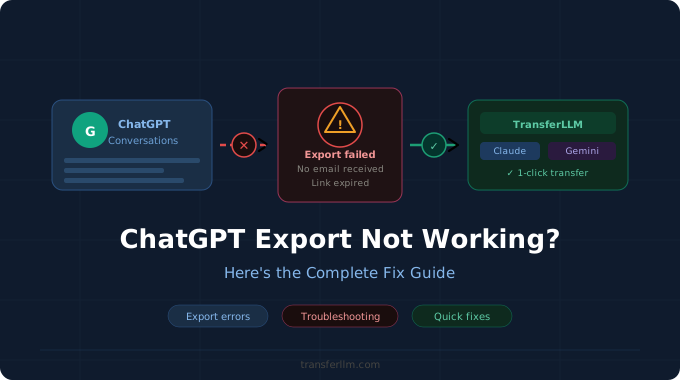

Your export request went nowhere. No email. No ZIP file. Just a spinning wheel and silence.
You clicked the button. You waited. Nothing showed up. Now you’re refreshing your inbox every ten minutes, wondering if your chat history is gone for good.
You’re not alone. ChatGPT export not working is one of the most common complaints in ChatGPT support forums, and it’s rarely a real bug on your end. Most of the time, it’s one small thing quietly blocking the process and once you know what to check, it takes minutes to fix.
Quick answer: ChatGPT export usually fails because the confirmation email lands in spam, a previous request is still active, or a browser extension is blocking the download. Check spam first, wait 2-3 hours, then try a different browser. Most exports complete within 24 hours.
Why This Actually Matters
Your chat history isn’t just text sitting on a server. It’s research threads, half-finished drafts, brainstorms you never wrote down anywhere else.
Lose that thread, and you’re not just annoyed. You’re rebuilding weeks of work from memory, and memory is never as good as the original conversation.
A failed export also boxes you in. You can’t switch tools. You can’t back up your data properly. You can’t move to another AI assistant without a clean, usable copy of what you already built.
This matters even more now. More people are testing multiple AI tools side by side – ChatGPT for one task, Claude or Gemini for another. If your export tool doesn’t work, you’re stuck using just one platform, even when a different one fits the job better.
There’s also a quieter risk here. Accounts get suspended, deleted, or locked out for all kinds of reasons – a billing issue, a security flag, a policy update you never saw. If that happens before you’ve exported anything, your conversations disappear with the account. No warning. No second chance to grab them.
Why ChatGPT Export Not Working Happens So Often
1. The Email Went to Spam
ChatGPT doesn’t hand you a file directly inside the app. It sends an email with a download link instead.
Promotions and spam folders swallow that email constantly, especially if you use Gmail’s tabbed inbox or an aggressive spam filter.
Fix: Search your inbox for “OpenAI” or “export.” Check spam, junk, and promotions tabs before assuming anything broke.
2. The Export Is Still Processing
OpenAI’s export system isn’t instant. Larger accounts with thousands of messages take longer to package up.
Processing time can run from a few minutes to several hours, depending on server load at the time you submit the request.
Fix: Wait at least 2-3 hours before checking again. Don’t resubmit the request – multiple pending requests slow the queue down even further.
3. You Already Have a Request Pending
ChatGPT blocks new export requests while an older one is still active. This can lock you out for up to 24 hours at a time.
This is one of the most common reasons people think export is “broken.” They click the button twice, get impatient, and assume the feature has failed entirely.
Fix: Check your inbox for an older export email before requesting a new one. If a link is still valid, just use that.
4. A VPN or Extension Is Blocking It
Ad blockers, privacy extensions, and VPNs can silently interrupt the download without showing any error message on screen.
You’d never know this was the cause unless you happened to test the export in a different setup.
Fix: Disable your VPN and any aggressive browser extensions, then retry the export from a clean session.
5. The Download Link Expired
Export links don’t stay valid forever. Open the email a few days late and you’ll find a dead link waiting for you.
This is one of the more frustrating causes, because people assume they’ve already backed up their data – only to find out later that they never actually downloaded the file.
Fix: Download the file the same day the email arrives. Don’t leave it sitting unread in your inbox.
6. Your Account Has a Verification Issue
An unverified email address or a flagged login session can quietly break the export feature on OpenAI’s backend, with no visible warning inside the app.
Insight most guides skip: this often shows up right after a password reset or a login from a new device. OpenAI runs a silent security check in the background, and that check alone can delay or block exports for hours without ever telling you why.
Fix: Log out completely, log back in, and confirm your email is verified under account settings before trying again.
5 Fixes for ChatGPT Export Not Working
Method 1: Re-request the export Go to Settings > Data Controls > Export Data. Confirm the request, then check your inbox and spam folder over the next few hours.
Method 2: Switch browsers Try Firefox or Edge if Chrome isn’t cooperating. Browser-specific blocks are more common than most people expect, especially with privacy-focused browser settings.
Method 3: Clear cache and cookies A stale cache can make the export button look like it worked when nothing was actually sent to OpenAI’s servers. Clear your browsing data, restart the browser, and try again.
Method 4: Check your account status Visit help.openai.com and look for any account notices. Confirm your email is verified before submitting a fresh export request.
Method 5: Use incognito mode A clean private session strips out extensions and stored data that might be quietly interfering with the request.
Edge case worth knowing: if you’re using a work or school Google Workspace account, admin-level data controls can silently block exports entirely. This has nothing to do with your personal ChatGPT settings, and it won’t show any error message – the request just quietly fails every time.
Native Export vs. TransferLLM
Even when you finally get past ChatGPT export not working, the native tool only gives you a raw data dump. It doesn’t give you anything you can actually keep using.
| Factor | Native ChatGPT Export | TransferLLM |
|---|---|---|
| Wait time | Minutes to hours | Instant |
| File format | Raw ZIP + JSON | Clean, readable, ready to use |
| Select specific chats | No — all or nothing | Yes |
| Move to another AI | Not supported | Built for this |
| Link expiration risk | Yes | None |
| Setup required | None | Connect once |
That gap is exactly where TransferLLM fits in. Instead of exporting to a ZIP file you’ll never actually open, TransferLLM moves your ChatGPT conversations straight into Claude, Gemini, or another AI tool fully intact, formatted exactly as they were, and ready to continue.
Connect your account, pick the specific chats you want, and transfer them in seconds. No JSON files to decode. No expired links to chase. No starting a conversation over from scratch just because you switched platforms.
👉 [Try TransferLLM for fast, secure chat transfer.]
FAQs
Why is my ChatGPT export not working?
Usually it’s spam, an expired link, an active request already in progress, or a browser quietly blocking the download. Check spam first; that solves it for most people.
How long does a ChatGPT export take?
Anywhere from a few minutes to several hours, depending on your account size and server load. Resubmit only after 12 or more hours with nothing received.
Can I export just specific ChatGPT conversations?
Not with the native tool – it exports everything in one big ZIP file. TransferLLM lets you pick individual chats instead of grabbing everything at once.
What file format does ChatGPT export use?
A ZIP archive full of raw JSON files. It’s technically complete data, but not readable without some technical know-how.
Is it safe to use a third-party export tool?
Yes, as long as the tool is transparent about how it handles your data. TransferLLM uses secure authorization and doesn’t retain your conversations after the transfer is complete.
What should I do if the export button is grayed out?
It almost always means a previous request is still active or the cooldown window hasn’t ended yet. Wait 24 hours and try again. If it’s still grayed out after that, check your account status at help.openai.com for any flagged issues.
Get Your ChatGPT Conversations Working Again
Spam folder, fresh browser, a 24-hour wait one of these three fixes ChatGPT export not working almost every single time.
But if you’re tired of fighting the export tool every time you want a copy of your own data, you don’t have to keep doing this dance. Set it up once, and you’ll never have to think about spam folders, expired links, or grayed-out buttons again.