
You’ve spent months, maybe years, building up your ChatGPT history. Your preferences are saved. Your projects have context. Gemini finally gets your communication style right on the first message, not the fifth. Switching AI tools has always meant losing all of that and starting from scratch.
Not anymore.
On March 26, 2026, Google officially launched its “Import Memory to Gemini” feature. For the first time, you can move your ChatGPT conversations, memories, and preferences directly into Gemini without re-explaining yourself from zero. This guide covers exactly how to do it, what transfers, what doesn’t, and how TransferLLM fills the gaps that the native import tool leaves behind.
Why People Are Switching from ChatGPT to Gemini Right Now
The AI landscape shifted fast in early 2026. Google’s Gemini has nearly quadrupled its market share over the past year, and the gap with ChatGPT is narrowing quickly. More users are curious about Gemini’s deep integration with Google Workspace, its Personal Intelligence feature that pulls context from Gmail and Google Photos, and its multimodal capabilities.
The problem was always the switching cost, not money, but context. Every ChatGPT user has built up a library of personalized interactions. Abandoning that felt like wiping your phone and losing every app setting, note, and preference in one go.
Google’s new import tools change that calculation entirely.
What Changed in March 2026
Google rolled out two import mechanisms simultaneously. The first lets you transfer a memory summary, a curated snapshot of your preferences, communication style, and personal context in about five minutes. The second lets you upload your entire ChatGPT conversation archive as a ZIP file for a complete migration.
Anthropic had actually launched a similar Claude memory import tool three weeks earlier, which tells you something: AI portability is now a competitive battleground, not a nice-to-have feature.
The Real Cost of Starting Over on a New AI
Most people underestimate how much context they’ve built. You’ve told ChatGPT your job title, your writing style preferences, what topics matter to you, and how you like responses formatted. Rebuilding that from scratch on a new platform takes weeks of repeated prompting.
That’s the problem TransferLLM was built to solve, and it goes further than what Google’s native tool handles on its own.
What You Can (and Cannot) Transfer from ChatGPT to Gemini
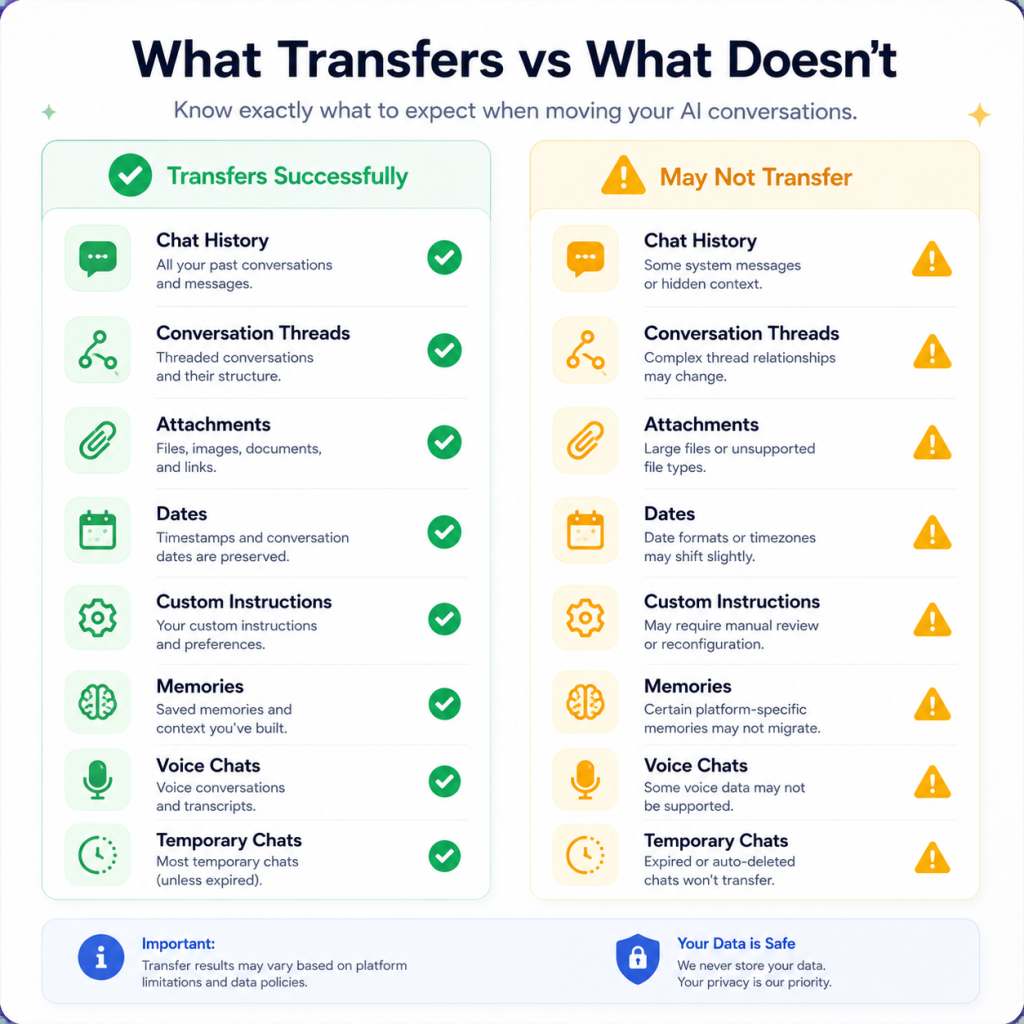
Before you start, it’s worth knowing exactly what moves and what stays behind. A lot of users get surprised by the gaps.
Quick Answer: When you import ChatGPT data into Gemini, only text transfers. This includes chat history, personal preferences, memory summaries, and ongoing project context. Images, generated files, attachments, and plugin configurations do not transfer.
What Transfers Successfully
- Your full text-based conversation history
- Personal preferences and communication style
- Memory summaries (topics you care about, biographical details, relationship context)
- Ongoing project threads and background context
- Subject matter expertise that you’ve established over time
What Does NOT Transfer
- Images and DALL·E-generated outputs
- Files and attachments from conversations
- Custom GPT configurations and plugin settings
- Precise formatting code blocks, tables, and indentation often break during import
- ChatGPT plugins or any tool integrations
One more thing worth knowing: once your history is in Gemini, any conversations you continue will use Gemini’s model, not GPT-4. The context carries over, but the responses will sound like Gemini. That’s expected behavior, not a bug.
Two Ways to Import ChatGPT into Gemini
Gemini offers two distinct import methods. Which one you choose depends on whether you want speed or completeness.
Method 1: Import Your Memory Summary (Fastest, ~5 Minutes)
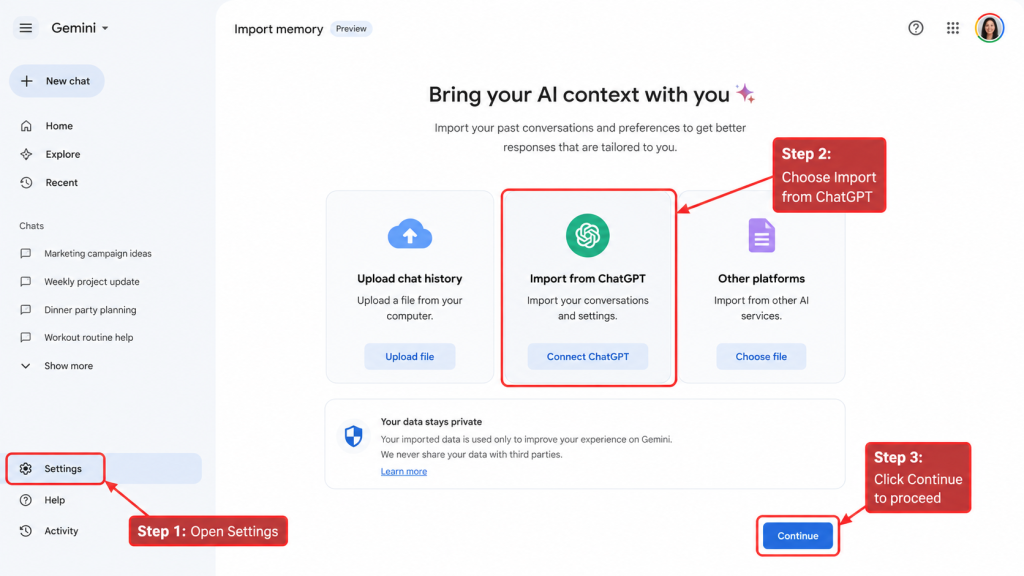
This method transfers what matters most: how you communicate, what you care about, and the personal context you’ve shared over time. It doesn’t move individual conversations, but it gets Gemini up to speed on you as a user almost instantly.
Step 1: Open Gemini Settings
Open Gemini in your browser or app. Click Settings & Help in the bottom-left corner of the screen.
Step 2: Select “Import Memory to Gemini”
In the settings menu, find and click Import Memory to Gemini. This opens the import panel.
Step 3: Copy the Gemini-Generated Prompt
Gemini creates a custom prompt designed to extract the most useful context from your existing AI tool. Copy this prompt exactly as written.
Step 4: Paste the Prompt into ChatGPT
Open a new chat in ChatGPT and paste the Gemini prompt. ChatGPT will respond with a structured summary of your preferences, demographics, topics, and communication style.
Step 5: Copy ChatGPT’s Summary Response
Copy the entire response ChatGPT generates. This is your personalized memory package.
Step 6: Paste the Summary into Gemini and Save
Return to the Gemini import panel, paste the summary into the text box, and click Add Memory. Gemini processes it and applies it immediately to all future conversations.
That’s it. Your next Gemini chat will already feel like it knows you.
Method 2: Import Your Full ChatGPT History (Complete Transfer)
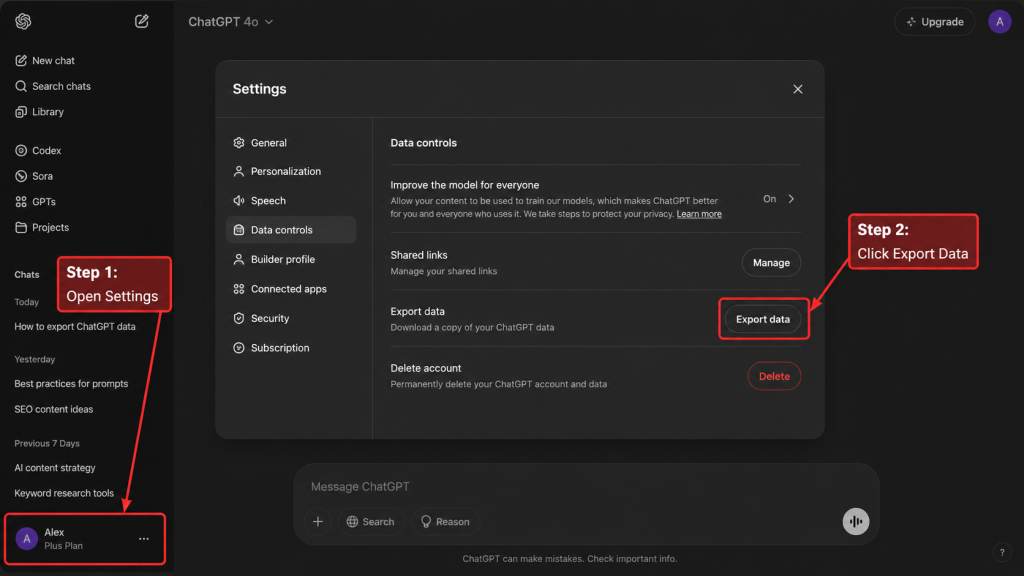
If you want to search old conversations, continue specific threads, or preserve a full record of your ChatGPT work inside Gemini, this is the method to use. It takes longer, but it’s more thorough.
Step 1: Export Your Data from ChatGPT
In ChatGPT, go to: Settings → Data Controls → Export Data → Confirm Export
ChatGPT sends a ZIP file to your email address. Check your inbox — it usually arrives within a few minutes. The archive includes a conversations.json file and any other exportable data from your account.
Step 2: Open Gemini’s Import Settings
In Gemini, go to: Settings & Help → Import Memory to Gemini → Import Chats → Add
Step 3: Upload Your ChatGPT ZIP File
Click Add and select your downloaded ZIP file. Gemini supports files up to 5 GB per upload and allows up to five files per day. For most users, one file covers everything.
Step 4: Wait for Processing
Smaller files process in minutes. Larger archives can take up to 24 hours. Gemini will notify you when the import is complete. Don’t re-upload the same file during this window.
Step 5: Find Your Imported Chats in Gemini
Once processed, your ChatGPT conversations appear in the left-hand sidebar with a special import icon. They’re visually distinct from native Gemini chats, so you always know what originated where.
You can search through them, reference them in new chats, and continue any thread — now powered by Gemini’s model.
TransferLLM: The Smarter Way to Import ChatGPT Data
Google’s native import tool works well for standard cases. But it has real limitations, especially if you have a large archive, heavily formatted content, or need more control over what transfers and how.
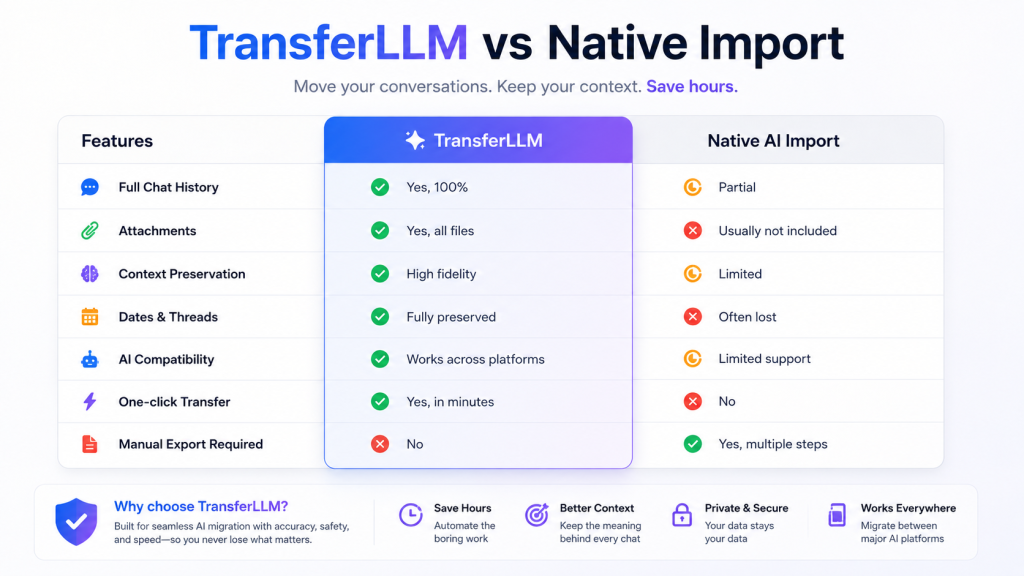
TransferLLM is an AI conversation migration platform built specifically for this. It handles the full transfer process from ChatGPT to Gemini and across other AI platforms with better formatting preservation, larger file support, and no data retention after migration.
What Is TransferLLM?
TransferLLM is a purpose-built migration tool that analyses your raw AI export, clusters your conversations by topic, and converts them into a structured knowledge base that’s ready for import into Gemini or any other supported platform. It bridges the gaps that native export tools leave behind.
TransferLLM vs. Gemini’s Native Import Tool
| Feature | Gemini Native Import | TransferLLM |
| Text chat history | ✅ | ✅ |
| Memory summary import | ✅ | ✅ |
| Formatting preservation (tables, code) | ❌ | ✅ |
| Large file handling beyond 5 GB | ❌ | ✅ |
| Import error recovery | ❌ | ✅ |
| Multi-platform support | Gemini only | Multiple AI tools |
| Topic clustering and organization | ❌ | ✅ |
| No data retention after transfer | Standard policy | ✅ Guaranteed |
How TransferLLM Handles What Native Import Misses
The native import tool drops images and breaks formatting. For developers, this matters code blocks collapse, indentation shifts, and tables lose their structure. For marketers and writers, it means carefully formatted content arrives in Gemini looking flat.
TransferLLM preserves your formatting. It also clusters your conversations by topic automatically, so instead of one massive archive dump, Gemini receives an organized knowledge base. Ongoing projects stay grouped. Related threads stay connected. Nothing important gets buried.
For users with years of ChatGPT history, the difference is significant.
Common Problems When You Import ChatGPT History into Gemini
Even with the right steps, things sometimes go wrong. Here are the most common issues and how to fix them.
Why Some Conversations Look Different in Gemini
This is expected. When you continue an imported conversation in Gemini, Gemini’s model generates the next response, not GPT-4. The context is the same, but the output reflects Gemini’s behavior, tone, and capabilities. Set that expectation before you migrate, and you won’t be caught off guard.
File Upload Errors and How to Fix Them
File too large: Split your ChatGPT export into smaller files before uploading. Most export tools, including TransferLLM, can do this automatically.
Processing stuck or delayed: Wait the full 24 hours before trying again. Re-uploading the same file before processing completes is the most common cause of duplicate imports.
Formatting collapse: Code blocks, tables, and lists often lose structure during native import. Use TransferLLM to pre-process your export before uploading it, which outputs a Gemini-ready, formatted file.
Gemini Import Not Available in Your Region?
As of March 2026, the native import feature is unavailable in the UK, EEA, and Switzerland due to GDPR compliance requirements. Google’s current implementation doesn’t yet meet the EU’s data processing standards for cross-platform personal data transfer.
If you’re in one of these regions, TransferLLM handles cross-border transfers with privacy controls built to meet European data standards, making it a practical alternative while Google works toward regulatory compliance.
Key Takeaways
- Google launched the official ChatGPT-to-Gemini import feature on March 26, 2026
- Two methods exist: memory summary import (fast, ~5 minutes) and full chat history ZIP upload (complete, up to 24 hours)
- Only text transfers images, files, and plugin settings do not move
- The feature is not available in the UK, EEA, or Switzerland as of mid-2026
- Gemini processes imported conversations with its own model. Continued threads will sound like Gemini, not ChatGPT
- File size limit: 5 GB per file, up to 5 files per day
- TransferLLM solves the gaps: formatting preservation, large files, regional availability, and organized migration
Frequently Asked Questions
Can I import my entire ChatGPT history into Gemini?
Yes. Export your ChatGPT data as a ZIP file via Settings → Data Controls → Export Data, then upload it to Gemini via Settings & Help → Import Memory to Gemini → Import Chats. Only text content transfers; images and attachments do not.
How long does it take to import ChatGPT data into Gemini?
Memory summary imports happen immediately. Full chat history imports take anywhere from a few minutes to 24 hours, depending on file size. Don’t re-upload the file during this window.
Is it safe to import ChatGPT data into Gemini?
Google processes imported data under its standard privacy policy. For users who want tighter control, including no data retention after transfer, TransferLLM provides enhanced privacy settings specifically for AI migration.
Does Gemini support ChatGPT import in Europe?
Not yet. As of March 2026, the feature is unavailable in the UK, EEA, and Switzerland due to GDPR requirements. TransferLLM offers an alternative for users in these regions.
Will Gemini respond the same way ChatGPT did after I import?
No. Continued conversations use Gemini’s model. Your history and context carry over, but Gemini’s outputs reflect its own capabilities and style, not GPT-4’s.
What is the file size limit for importing ChatGPT data into Gemini?
Gemini supports up to 5 GB per ZIP file and allows up to five uploads per day. For archives larger than this, TransferLLM can split and process the files before upload.
Can I use a tool to automate the ChatGPT-to-Gemini transfer?
Yes. TransferLLM automates the full migration: it processes your ChatGPT export, preserves formatting, clusters conversations by topic, and outputs a Gemini-ready file with no manual steps required beyond the final upload.
Ready to make the switch without the headaches? TransferLLM moves your ChatGPT data into Gemini in minutes, formatted, organized, and complete. [Try TransferLLM →]