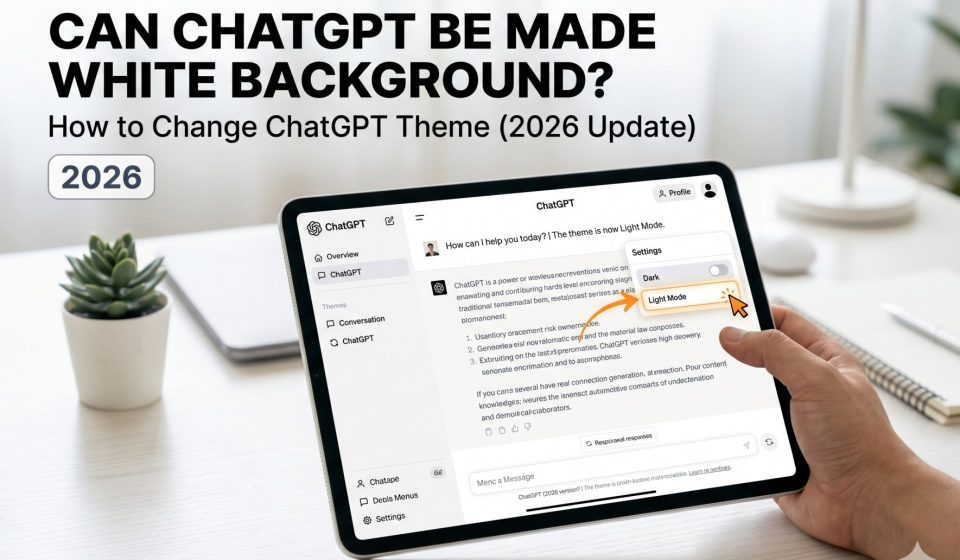

If you have opened ChatGPT and found yourself looking at a dark grey or black interface when you would prefer a clean white or light background, you are not alone. This is one of the most frequently searched customisation questions about the platform.
The short answer is yes. ChatGPT does support a light mode with a white background, and switching between light and dark mode is built into the interface. This guide walks through exactly how to do it across every device and context, including desktop browsers, the mobile app, and system-level settings.
Does ChatGPT Have a Built-In Light Mode
Yes. ChatGPT includes a theme setting that lets you choose between light mode, dark mode, and system default. The light mode uses a white or near-white background that many users find easier to read, especially in well-lit environments or during extended writing sessions.
The setting is accessible in just a few clicks and applies immediately without requiring a page reload or account-level change. It is tied to your account, so the setting follows you across different devices as long as you are logged in.
How to Change ChatGPT to a White Background on Desktop
The theme setting is found inside the account settings area of ChatGPT on desktop.
Step by step:
- Open ChatGPT at chat.openai.com and log in to your account.
- Look at the bottom-left corner of the interface. You will see your account name or profile icon.
- Click on your account name or profile icon to open the account menu.
- In the menu that appears, click on “Settings.”
- In the Settings panel, look for the “Theme” option.
- Click on the Theme dropdown or toggle to see the available options: Light, Dark, and System.
- Select “Light” to switch to a white background.
The change takes effect immediately across the entire interface. The sidebar, the conversation area, and the input box will all shift to the light colour scheme.
If you do not see a Theme option in Settings, your account may be on an older interface version. In that case, try refreshing the page or clearing your browser cache, as the settings panel is sometimes served from a cached version of the interface that is out of date.
How to Change ChatGPT to a White Background on the Mobile App
The ChatGPT mobile app on iOS and Android also supports theme selection through the settings menu.
On iOS:
- Open the ChatGPT app.
- Tap on the two horizontal lines icon or the sidebar toggle in the top-left corner.
- Tap on your profile name or the settings icon at the bottom of the sidebar.
- Look for Appearance or Theme in the settings list.
- Select Light to switch to the white background.
On Android:
- Open the ChatGPT app.
- Tap the menu icon or your profile picture in the top corner.
- Go to Settings.
- Find the Appearance section.
- Choose Light mode.
If the Appearance option is not visible in your app, your version of the app may need to be updated. Open the Google Play Store or Apple App Store, search for ChatGPT, and update to the latest version. The theme setting has been available since mid-2023 but some older app versions do not include it.
What the System Default Option Does
When you select “System” as your ChatGPT theme, the interface automatically follows the appearance setting of your operating system.
On Windows: If you have set Windows to use a light theme in Settings under Personalisation and Colors, ChatGPT will display in light mode. If you switch Windows to dark mode, ChatGPT will follow.
On macOS: The system default follows the appearance setting in System Settings under General. Choose Light in macOS appearance settings and ChatGPT will display with a white background when System is selected.
On iOS and Android: The system appearance toggle in your device settings controls what ChatGPT shows when the app is set to System mode.
This option is useful if you switch between light and dark depending on the time of day or environment, as it means you only need to change one setting in your operating system rather than toggling each app individually.
Why ChatGPT Might Still Look Dark After Changing the Theme Setting
Some users change the theme setting to Light and find that the interface stays dark or only partially changes. There are a few reasons this can happen.
Browser override settings. Some browsers include their own dark mode enforcement feature that overrides the appearance settings of individual websites. In Chrome, this is sometimes activated through a flag or an extension. If your browser is forcing dark mode on all pages, ChatGPT’s light mode setting will not be visible.
To check this in Chrome:
- Type
chrome://flagsin the address bar. - Search for “dark mode” or “auto dark mode.”
- If any dark mode flags are enabled, disable them and restart Chrome.
Dark mode browser extensions. Extensions like Dark Reader or Midnight Lizard apply their own colour overlays to all websites. Even if ChatGPT is set to Light, the extension may still render it dark. Try disabling these extensions for the openai.com domain or turning them off entirely to check.
System colour inversion settings. On Windows and Mac, there are accessibility options that invert colours on screen. If colour inversion is active, a white background will appear dark. Check your accessibility settings to rule this out.
Can You Customise ChatGPT Beyond Just Light and Dark Mode
As of 2026, ChatGPT does not offer colour customisation beyond the built-in light, dark, and system options. You cannot change the accent colour, font size through the interface settings, or the specific shade of white or grey used in light mode.
However, there are third-party browser extensions that allow deeper visual customisation of ChatGPT. These tools inject custom CSS into the page to change colours, fonts, spacing, and other visual elements. They are available in the Chrome Web Store and Firefox Add-ons library.
Before installing any such extension, consider the following. These tools are not made by OpenAI and they operate by reading and modifying the ChatGPT page in your browser. Review the permissions the extension requests before installing it.
If you primarily want a white background and nothing else, the built-in light mode setting is sufficient and carries no additional risks.
Is White Background Better or Worse for Eye Strain
This is a genuinely contested topic in the field of screen ergonomics and the answer depends heavily on your environment and individual vision.
In bright, well-lit environments, a white or light background typically causes less eye strain because the contrast between the screen and the surrounding environment is lower. When a dark screen is surrounded by bright light, your eyes have to adjust constantly between the two.
In dim or dark environments, a white background can cause more strain because the screen becomes the dominant light source. Dark mode is generally more comfortable in low-light conditions.
The most practical approach is to use the System setting in ChatGPT and set your operating system to switch automatically between light and dark at sunset and sunrise. Both macOS and Windows support scheduled theme switching and iOS does as well through the Automation section of Shortcuts.
Blue light filtering is a separate consideration from background colour. Whether you use light or dark mode, enabling your device’s built-in blue light reduction feature in the evening can reduce eye strain independent of background colour.
What White Background Looks Like Across Different ChatGPT Versions
The exact shade of white in ChatGPT’s light mode has changed across interface versions. Earlier versions used a pure white background that some users found harsh. More recent versions use a slightly off-white or light grey tone that is easier on the eyes while still being clearly a light mode.
If you update your browser and clear your cache but the interface still looks different from what other users describe, this may be because OpenAI runs A/B tests on interface variations. Some accounts see a slightly different version of the light mode design depending on which test group they are assigned to.
There is no way to select a specific shade of white within the built-in settings. If you have a strong preference for a particular tone, a custom CSS extension would be the only way to achieve it.
Does the White Background Setting Affect ChatGPT Exports or Shared Links
The background theme you choose is a display-only setting that affects only your own view of the interface. It does not change how your conversations look in exported files or in shared conversation links.
When you share a ChatGPT conversation link, the recipient sees the conversation in their own preferred theme, or in the default theme if they are not logged in. The link does not carry your theme setting with it.
Exported conversation data, which is available through Settings under Data Controls, is delivered as a JSON file and does not have any visual formatting associated with it.
Switching Platforms and Starting Fresh With a Better Interface
If you have found ChatGPT’s interface limiting in ways that go beyond just the background colour, it may be worth trying a different AI platform. Both Claude and Gemini have their own interface designs, including their own light and dark mode options, and some users find them more comfortable for extended use.
The good news is that switching does not mean losing your work. TransferLLM provides tools specifically designed to move your full ChatGPT conversation history to another platform without any manual copy and paste.
If you want to try Claude, chatgpt2claude.com handles the complete transfer process and maintains the structure and context of each conversation. If Gemini is your preferred destination, chatgpt2gemini.com does the same for Google’s platform.
You can also read about how to transfer ChatGPT chats to Gemini without errors and how to migrate ChatGPT conversations to Gemini step by step before deciding which direction suits you best.
Summary: How to Get a White Background in ChatGPT
The fastest way to switch ChatGPT to a white background is to go to Settings, find the Theme option, and select Light. This works on both the desktop browser interface and the mobile app.
If the setting does not seem to apply, check for browser dark mode flags, dark mode extensions like Dark Reader, and system-level colour inversion settings. Any of these can override the ChatGPT theme setting.
If you want the background to follow your device’s day and night cycle automatically, select System instead of Light, and configure your operating system to switch between light and dark on a schedule.
For users who want more visual control than ChatGPT currently offers, browser extensions with custom CSS support are an option, though they come with third-party software risks that are worth considering carefully before installing.
The core point is that yes, ChatGPT can be made to show a white background, and the setting is built in, free, and available to all account holders regardless of whether they are on the free or paid plan.