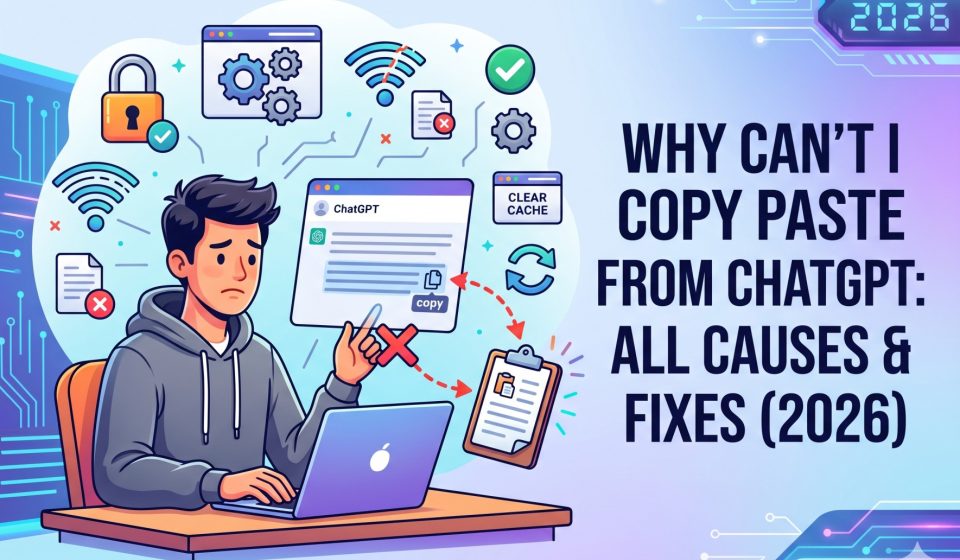

You click copy. The icon checks off. You paste. Nothing shows up.
If ChatGPT copy paste is not working for you right now, you’re not alone, and it’s not you doing something wrong. It’s almost always a clipboard permission your browser quietly shut off.
Quick Answer: ChatGPT copy paste usually fails because your browser blocked clipboard access, an extension is intercepting the shortcut, or another app just overwrote your clipboard. Fix it by checking site permissions in Chrome, toggling dom.events.asyncClipboard.readText in Firefox, or testing in an incognito window to rule out extensions.
Why This Actually Matters
Copy paste isn’t a nice-to-have. It’s the bridge between ChatGPT and your actual work.
Every failed copy means retyping a paragraph, losing formatting, or worse – losing the response entirely if you close the tab.
For anyone running client work, code, or content through ChatGPT daily, this isn’t a minor bug. It’s a workflow tax you shouldn’t be paying.
Think about how often you actually use ChatGPT output. You draft an email, pull a code snippet, or move ideas into a doc. Each step depends on one thing: the clipboard working silently in the background.
When it doesn’t, the cost adds up fast. A marketer copying ten prompts a day loses minutes each time. A developer copying code loses more – broken indentation, missing brackets, or half-pasted functions cost real debugging time later.
There’s also a trust problem. If you can’t rely on copy paste, you start double-checking every paste. That habit slows you down even when the clipboard is working fine. Fixing the root cause once beats working around it forever.
There’s a bigger pattern here too. Interface friction like this is often the first sign that a tool isn’t built for how you actually use it day to day. One broken copy button is annoying. A pattern of small breakages – slow load times, lost formatting, clipboard bugs – is a signal worth paying attention to.
Fix ChatGPT Copy Paste Not Working: Platform by Platform
Chrome: Reset Clipboard Permissions
Chrome blocks clipboard writes site-by-site. Here’s the fix:
- Open ChatGPT and click the padlock icon next to the URL.
- Select Site Settings.
- Find Clipboard and set it to Allow.
- Reload the page.
Still broken? Hit Reset permissions, then re-allow clipboard manually.
Firefox: Flip a Hidden Config Flag
Firefox hides this setting deeper than Chrome does.
- Type about:config in the address bar.
- Search dom.events.asyncClipboard.readText.
- Set it to true.
- Restart the browser.
Extensions like uBlock Origin can also block this silently. Disable them one at a time to isolate the culprit.
Safari: Check Two Layers, Not One
Safari blocks clipboard access at both the browser and OS level.
- Go to Safari > Settings > Websites.
- Check JavaScript permissions for chat.openai.com.
- Then check System Settings > Privacy & Security for clipboard restrictions.
On iPhone, the permission prompt resets often. If you dismissed it once, long-press and select Paste manually instead of using the shortcut.
Mobile App: Skip the Copy Button Entirely
On Android, long-press the response text directly. This triggers native text selection and bypasses the in-app button.
On iOS, use the Share option instead of the copy icon. It routes the text straight to Notes or Messages without touching the clipboard API.
Mobile clipboard bugs also tend to be app-version specific. If the issue started right after updating the ChatGPT app itself rather than your phone’s OS, check the app store listing for a note about recent fixes – clipboard handling is a common item in mobile changelogs. Reinstalling the app resets its permissions from scratch, which resolves the issue more often than you’d expect.
Insight most guides miss #1: If you copy successfully but paste garbage into another app, the problem usually isn’t ChatGPT. Something else, a password manager, a clipboard history tool – overwrote your clipboard in the gap between copy and paste. Test by pasting into the same browser tab first.
Insight most guides miss #2: On Windows, press Windows + V to open Clipboard History. If your copied text shows up there but won’t paste normally, the issue sits with the destination app, not ChatGPT.
Code Blocks Need Their Own Fix
Code snippets get a separate copy button in the top corner of the block. It’s built to copy just the code, no surrounding text.
If that button misbehaves, check your browser zoom first. Some setups break the code copy button when the page isn’t at 100% zoom. Press Ctrl + 0 or Cmd + 0 to reset it, then try again.
If zoom isn’t the issue, the same clipboard permission fix from earlier applies here too.
Right-Click Works But Shortcut Doesn’t (Or Vice Versa)
This mismatch almost always points to an extension. Context-menu tools and script blockers can quietly disable one copy method while leaving the other alone.
Open ChatGPT in an incognito window, where extensions are off by default. Test both copy methods there.
If both work in incognito, re-enable your extensions one at a time until you find the one causing trouble.
Ad blockers are frequent offenders here, even ones you’d never suspect of touching clipboard behavior. Many block scripts broadly on a page, and ChatGPT’s copy function depends on a small script running in the background. Block that script, and the button looks fine but does nothing.
Password managers cause a similar problem. Some inject their own right-click menu options on every page, which can override or bury ChatGPT’s native context menu entirely.
After a Browser Update
Browsers tighten clipboard rules constantly, often without warning. If copy paste broke right after an update, that’s your answer.
Check the release notes for clipboard-related changes. Then revisit ChatGPT’s site permissions and re-grant clipboard access manually. Other web tools you use may need the same fix.
This is especially common with major version jumps rather than small patch updates. Chrome’s shift toward stricter default clipboard permissions, for example, has broken copy paste on dozens of web apps at once, not just ChatGPT. If you noticed the same issue on other sites the same week, that confirms a browser-side change rather than something ChatGPT did.
The fix is usually a one-time permission reset per site. It doesn’t recur unless you clear all site data or reinstall the browser.
Fix Comparison at a Glance
| Symptom | Likely Cause | Fastest Fix |
| Icon checks off, nothing pastes | Clipboard permission blocked | Reset site permissions |
| Works in incognito, not normally | Extension conflict | Disable extensions one by one |
| Code block copy fails only | Zoom level or permission bug | Reset zoom to 100%, recheck permissions |
| Copies fine, pastes garbled | Clipboard overwritten by another app | Test-paste in same tab first |
| Fails only on mobile app | App rendering limitation | Long-press to select, or use Share |
How to Stop This From Happening Again
Fixing the issue once is good. Preventing repeat breakage is better.
Keep one browser as your ChatGPT default
Switching between Chrome, Firefox, and Edge multiple times a day means managing clipboard permissions in three places instead of one. Pick a primary browser for ChatGPT and keep its permissions locked to Allow.
Audit your extensions every few months
New extensions get installed, old ones get forgotten, and permission conflicts pile up quietly. A quick review of what’s actually intercepting clipboard or context-menu behavior saves you a debugging session later.
Clear cached site data periodically
Stale cache is a common, overlooked cause of clipboard bugs after a ChatGPT interface update. Clearing it for chat.openai.com specifically, not your whole browser, resolves this without wiping your other logins.
Watch for browser release notes
Chrome, Firefox, and Safari all publish changelogs before major updates. A five-minute scan before you update tells you if clipboard permissions are affected, so you’re not caught off guard mid-workday.
None of this eliminates every possible bug. But it cuts the frequency dramatically, and it means when something does break, you already know where to look first.
Common Questions People Also Ask
Does ChatGPT block copying on purpose?
No. There’s no intentional restriction. Every case traces back to browser settings, extensions, or OS-level permissions.
Why does pasted text include extra symbols or spacing?
ChatGPT uses Markdown internally. Plain text paste (Ctrl+Shift+V) strips those symbols cleanly.
Why can I copy some responses but not others?
Tables, code blocks, and math notation render differently than plain text. Use the copy button, not manual selection, for these.
Will future updates fix this for good?
Clipboard reliability has improved across past updates, but browser privacy changes keep shifting the rules underneath ChatGPT.
What if none of these fixes work?
Try three things. First, export your conversation from Data Controls in your account settings it saves everything in JSON format even if copying fails. Second, switch browsers entirely; a Chrome-specific bug often disappears on Firefox or Edge. Third, select text manually with your mouse and right-click Copy instead of using the button.
Is there a way to avoid this issue permanently?
Not entirely browsers will keep changing clipboard rules. But keeping one browser as your primary ChatGPT tool, auditing extensions regularly, and clearing site cache after major updates cuts the frequency down to almost nothing.
Never Deal With ChatGPT Copy Paste Not Working Again
Browser permissions will keep changing. Extensions will keep breaking things. That’s not going away.
If you’re tired of losing content to interface bugs, the real fix isn’t another permission reset it’s not relying on copy-paste at all.
TransferLLM moves your full ChatGPT conversation history into Claude or Gemini directly, with context intact, so nothing depends on a clipboard working correctly in the first place.
Read the full guide on moving ChatGPT chats to Claude without losing context before you start.