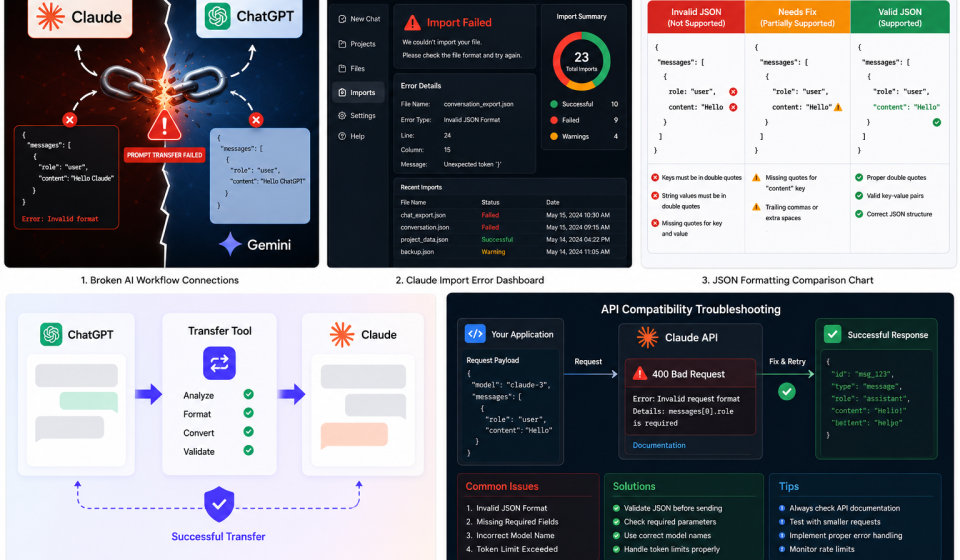

You set up your workflow carefully. You export a conversation, move it to Claude, and nothing works. Sound familiar? Thousands of users deal with Claude compatibility issues every single week.
These problems are not random. They follow patterns. And once you know the patterns, you can fix them fast.
This guide breaks down every major compatibility issue users face with Claude. It also gives you clear, step-by-step fixes you can apply right now.
What Are Claude Compatibility Issues?
Definition of Compatibility Problems in Claude
A Claude compatibility issue happens when Claude cannot read, process, or accept content from another source. This includes files, prompts, API calls, and chat exports.
The result is always disruptive. Your workflow stops. Your data gets lost. Your time gets wasted.
Common Situations Where Issues Appear
Chat Imports: Moving conversations from other tools into Claude often triggers formatting errors or blank results.
JSON Uploads: Claude expects a specific JSON schema. Anything outside that structure causes an immediate import failure.
Prompt Formatting: Markdown errors, special characters, and overlong prompts all break Claude’s ability to process your input correctly.
API Integrations: Wrong payload structures and version mismatches cause API calls to fail silently or return unexpected errors.
Browser-Related Problems: Extensions, cached data, and mobile browser limitations create unique problems that are easy to miss.
Why Compatibility Matters for AI Workflows
Your AI tools are only as good as your ability to move data between them. A single formatting error can block your entire pipeline.
Compatibility is not just a technical issue. It directly impacts productivity, project timelines, and the quality of your AI outputs.
Most Common Claude Compatibility Issues Users Face
JSON Import Errors
Invalid Schema Structure
Claude requires JSON files to follow a strict structure. Missing required fields or incorrect nesting breaks the import immediately.
Unsupported Formatting
Some JSON exports from other platforms include fields Claude does not recognize. Claude ignores or rejects these without warning.
Encoding Problems
Files saved in encodings other than UTF-8 often cause character corruption. This makes Claude unable to read the content correctly.
Prompt Formatting Issues
Broken Markdown
Markdown that works in ChatGPT does not always work in Claude. Mismatched symbols and unsupported syntax create broken outputs.
Unsupported Symbols
Special characters like em dashes, curly quotes, and non-standard Unicode often confuse Claude’s parser. They generate unexpected results.
Token Limit Problems
Claude has context window limits. Long prompts that exceed these limits get cut off. You lose critical information without realizing it.
Conversation Transfer Failures
ChatGPT to Claude Migration Errors
ChatGPT exports use a different structure than Claude expects. Role labels, message IDs, and metadata formats often conflict during migration.
Gemini to Claude Formatting Problems
Gemini conversations use Google-specific formatting. Claude does not natively support this format, causing failed or garbled imports.
Missing Context During Transfer
When you transfer chats, system prompts and memory context rarely carry over. Claude starts fresh, missing everything the previous AI knew.
Browser and Device Compatibility Problems
Extension Conflicts
Browser extensions that modify page behavior often interfere with Claude’s editor. Ad blockers and clipboard managers are frequent culprits.
Cache and Cookie Issues
Outdated cached data causes Claude to behave inconsistently. Clearing your browser cache often resolves strange loading or input problems.
Mobile vs Desktop Differences
Claude’s mobile experience differs from desktop. Some features are limited or absent on mobile browsers, causing functional gaps in your workflow.
Claude API Compatibility Errors
Incorrect API Payload Structure
The Anthropic API requires payloads in a specific format. Missing headers, wrong content types, or incorrect role assignments cause request failures.
Version Mismatch Problems
Older API versions behave differently from current ones. Using deprecated endpoints or outdated parameters generates errors that are hard to trace.
Rate Limit Conflicts
Sending too many API requests in a short window triggers rate limiting. This breaks automated workflows and causes silent failures in integrations.
Main Causes Behind Claude Compatibility Issues
Unsupported File Formats
Claude accepts specific file types. PDFs, plain text, and supported document formats work reliably. Everything else needs conversion before upload.
Incorrect JSON Structure
Most Claude JSON import errors come from structure problems. A single missing bracket or misnamed key breaks the entire file.
AI Platform Formatting Differences
Every AI platform has its own formatting rules. What works in one platform almost never transfers cleanly to another without adjustment.
Outdated Integrations and Plugins
Third-party tools that connect to Claude can fall behind API updates. An outdated plugin creates errors that look like Claude bugs but are not.
Token and Context Limitations
Claude processes content within defined token limits. Prompts or files that exceed these limits get truncated, which causes partial or incorrect responses.
How to Fix Claude Compatibility Issues
Validate JSON Before Uploading
Use a JSON validator like JSONLint before uploading any file to Claude. This catches structural errors before they cause import failures.
Run your file through the validator. Fix every error flagged. Then upload. This simple step saves hours of troubleshooting.
Use Clean Prompt Formatting
Write prompts in plain text first. Avoid copying directly from Word documents or formatted editors. These sources inject hidden characters that break formatting.
Stick to standard Markdown. Use simple headers, bullet points, and code blocks. Avoid fancy punctuation or non-standard quote styles.
Convert Unsupported Files Properly
Convert files to Claude-compatible formats before uploading. Use free tools to convert Word docs to plain text or PDF exports to clean text files.
Never upload raw exports from other AI tools without checking the format first. Convert, clean, then upload.
Remove Hidden Characters and Broken Markdown
Paste your content into a plain text editor like Notepad or TextEdit before sending it to Claude. This strips hidden formatting characters automatically.
For longer documents, use an online character cleaner. These tools remove invisible Unicode characters that cause parsing errors.
Update Browser and Extensions
Keep your browser updated to the latest version. Disable all extensions temporarily when troubleshooting Claude errors. Re-enable them one by one to find conflicts.
Clear your browser cache and cookies at least once a week if you use Claude daily. This prevents most browser-related compatibility problems.
Test Smaller Prompt Segments
When a large prompt fails, break it into smaller parts. Test each segment separately. This isolates the exact section causing the problem.
Start with 500-word chunks. Identify which chunk fails. Fix that section, then combine everything back together.
Use AI Transfer Tools for Better Formatting
TransferLLM is built specifically for moving conversations and prompts between AI platforms. It handles format conversion, schema translation, and encoding cleanup automatically.
Instead of manually reformatting ChatGPT or Gemini exports, TransferLLM converts them into Claude-ready files. This cuts migration time from hours to minutes.
Best Practices to Avoid Future Compatibility Problems
Standardize AI Workflow Formats
Choose one format for your AI workflows and stick to it. Plain text with standard Markdown works across every major AI platform without modification.
Keep Prompts Platform-Neutral
Write prompts that do not rely on platform-specific features. Avoid using proprietary formatting or model-specific syntax that does not transfer cleanly.
Use Structured Exports
Always export conversations in JSON or plain text format. These formats are universally readable and easiest to clean when errors appear.
Maintain Prompt Templates
Build a library of tested, clean prompt templates. Store them in a format that works across Claude, ChatGPT, and Gemini without changes.
Test Integrations Regularly
Run compatibility checks on your integrations monthly. API endpoints change. Plugin versions lag. Regular testing catches breaking changes before they damage your workflow.
Claude Compatibility Tips for Developers
Use Proper API Documentation
Always reference the official Anthropic API documentation before building integrations. The documentation updates frequently. Outdated code creates hard-to-diagnose errors.
Handle Token Limits Correctly
Build token counting into your applications. Use Anthropic’s tokenizer to estimate token counts before sending requests. Truncate or paginate content that exceeds limits.
Validate Payloads Automatically
Add automated payload validation to your integration pipeline. Validate structure, required fields, and data types before every API call. This prevents the majority of API errors.
Implement Fallback Formatting Systems
Build fallback logic that strips formatting if the primary request fails. Plain text fallbacks keep your application running even when rich formatting causes errors.
Tools That Help Reduce Claude Compatibility Issues
AI Chat Transfer Tools
TransferLLM leads this category. It converts conversations from ChatGPT, Gemini, and other AI platforms into Claude-compatible formats. It handles encoding, schema translation, and metadata cleanup.
JSON Validation Tools
JSONLint and JSON Formatter are reliable free tools. They catch structural errors before upload and highlight exactly where your JSON breaks.
Markdown Cleaners
Dillinger and MarkdownLint help clean and validate Markdown before sending it to Claude. They catch broken syntax that causes formatting failures.
Prompt Optimization Platforms
Platforms like PromptLayer and Promptable help you store, test, and manage prompts. They reduce manual formatting errors and keep prompts consistent across platforms.
Claude vs Other AI Platforms: Compatibility Comparison
Claude vs ChatGPT Formatting Support
ChatGPT uses OpenAI’s message structure. Claude uses Anthropic’s format. They are similar but not identical. Role labels and system prompt placement differ between the two.
Claude vs Gemini Import Flexibility
Gemini exports use Google’s proprietary format. Claude does not natively support this. Every Gemini-to-Claude migration requires format conversion, either manually or through a tool like TransferLLM.
API Compatibility Differences
Claude’s API uses its own endpoint structure, authentication method, and payload format. OpenAI-compatible clients do not work with Claude without modification.
Workflow Migration Comparison
ChatGPT-to-Claude migrations are more straightforward than Gemini-to-Claude. The formatting gap between ChatGPT and Claude is smaller. Gemini migrations require more cleanup.
Real-World Examples of Claude Compatibility Problems
Broken Prompt Import Example
A content team exported their ChatGPT prompt library as JSON. Claude rejected every file. The cause was a mismatched role label. ChatGPT used “system” in a position Claude expected “user”. One field name change fixed all 47 files.
API Request Failure Example
A developer’s integration stopped working after an Anthropic update. The payload used an old parameter name that the new API version no longer accepted. The error message pointed nowhere useful. Checking the changelog immediately revealed the breaking change.
JSON Upload Issue Walkthrough
A user uploaded a workflow file and got a blank response. Running the file through JSONLint showed a missing closing bracket on line 84. Fixing that single character resolved the upload instantly.
FAQ Section (People Also Ask Style)
Why is Claude showing import errors?
Claude import errors usually happen because of invalid JSON formatting, unsupported file structures, or corrupted exports.
Does Claude support ChatGPT exports?
Claude can support some ChatGPT exports, but formatting differences may require cleanup or conversion before importing.
How do I fix Claude JSON compatibility issues?
Use a JSON validator, remove unsupported fields, and ensure the schema matches Claude’s accepted structure.
Why are my prompts breaking in Claude?
Broken markdown, unsupported symbols, and excessive token length can cause prompt formatting issues.
What file formats work best with Claude?
TXT, properly formatted JSON, and clean markdown files usually work best.
Can browser extensions cause Claude errors?
Yes. Ad blockers, AI extensions, and outdated browser plugins can interfere with Claude functionality.
How do developers avoid Claude API compatibility issues?
Developers should validate payloads, follow updated API documentation, and handle token limits carefully.
Is there a tool for transferring chats into Claude?
Yes. AI workflow transfer tools can help clean formatting and improve compatibility during migration.
Successful Compatibility Fix Case Study
A marketing team migrated 300 conversations from Gemini to Claude using TransferLLM. Manual migration had failed repeatedly due to encoding errors and schema mismatches. TransferLLM converted all 300 files in under ten minutes. Every conversation loaded correctly in Claude on the first attempt.
Claude compatibility issues are frustrating. But they are always fixable. Most problems come from formatting gaps, schema differences, or outdated integrations.
Clean your files. Validate your JSON. Use TransferLLM for platform migrations. Test integrations regularly. These habits eliminate nearly every compatibility problem before it starts.
Start with one fix today. Your workflow will thank you.