
It is a native desktop application designed to help users easily and securely migrate or port their chat histories from one Large Language Model (LLM) platform to another.
Key Features:
Optimized Transfer: Already exported chats are stored locally and are automatically skipped in subsequent runs, allowing you to resume transfers efficiently.
Local Processing: All chat data processing, exporting, and temporary storage occur locally on your machine. Your chat files are encrypted and are never uploaded to a third-party server.
Application Flow
Step 1: Login Screen
When you first launch Chatporter, the Login screen appears. Click the Login button to proceed to the external authentication page. Enter the Email address and License key that you received on purchasing the utility. Once your credentials are verified, you’ll be redirected to the Welcome screen to begin using the application.
Step 2: Welcome Screen and Selection
After successful login, the Welcome screen will load.
- Select Source LLM: Choose the platform you are migrating from (e.g., ChatGPT).
- Select Destination LLM: Choose the platform you are migrating to (e.g.,Gemini/Claude).
- Proceed: Click the “Start Transfer” button.
Step 3: Authentication and Authorization
Once you click “Continue to authorize accounts”, you will be securely prompted to log in to the required platforms:
- Source Login: You will be directed to the login page for the Source LLM (e.g., ChatGPT). Log in with your credentials. This authorizes chatporter to begin exporting your data.
- Destination Login: Once the source is authorized, you will be automatically redirected to the Destination LLM (e.g., Gemini/Claude) login page. Log in here to authorize chatporter to import the data.
Note: You must use your email address and password to log in.
If you’re logged into ChatGPT (source LLM) with your Google account, you’ll automatically be logged into destination LLM using the same email address. A confirmation popup will display your logged-in email. Click Continue to proceed with this account.
To use a different Google account, you must first sign out from all Google accounts completely, then sign in again with the account you wish to use.
Step 4: Verify Connected Accounts
The next screen displays your currently connected accounts for both your Source LLM (ChatGPT) and Destination LLM (Gemini/Claude). Review the displayed email addresses to confirm they’re correct. You can click Disconnect on either account to sign in with a different email address, or you can proceed to migrate chats. There are two options available:
Export Selective Chats: Choose this option to pick exactly which conversations you want to move.
Export All Chats: Choose this option if you want to migrate all conversations from your account.
Select Chats and Continue
In case you chose the option to migrate selective chats, a list of all available conversations from your source account will appear. Project specific chats are grouped into corresponding project accordion. Manually check the boxes next to individual chats/projects you wish to port, or click Select All to select all pending chats. Click Continue once you select the chats.
Step 5: Migration Process (Export/Import)
Once both platforms are authorized, the automated transfer begins.
- Export Process: Your chats are exported from the Source LLM and are saved locally to your machine in a temporary, secure and optimized format.
- Import Process: The locally saved chats are then read and securely imported into the Destination LLM.
- The progress bar will reflect the number of the selected chats in case you chose to migrate selective chats.
Progress and Resumption
- Progress modals will be shown during the transfer process. Please keep the application open until the process is complete.
- Resumption Feature: If you quit the application mid-transfer, all previously exported chats are saved locally. When you run the migration again, the system will automatically skip these already exported chats, resuming the transfer from where it left off.
Resume Import: Use this option to bypass Export and seamlessly resume your Gemini/Claude import from where you previously stopped.
Step 6: Completion
Upon successful transfer, a final Transfer log screen will appear showing stats for the number of chats processed, Imported, Skipped, Failed.
You can find all your imported conversations in the destination LLM (e.g., Gemini/Claude).
Help Section
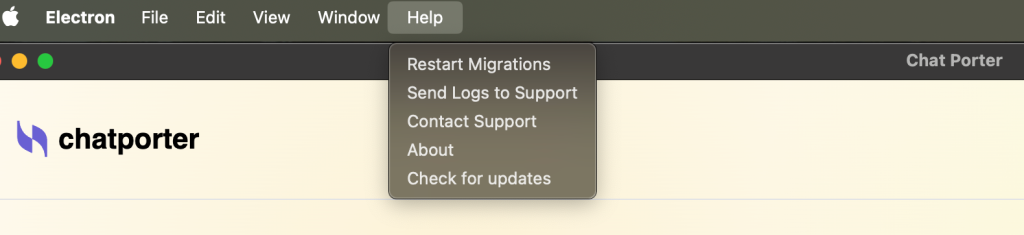
- You can go back to the main screen and restart migration from the Restart Migrations option available in the Help menu.
- You can also send logs for troubleshooting by clicking the Send Logs to Support option.
- Clear Migration Cache: Choose this option to delete the local encrypted data used to facilitate your transfers. While this frees up space and removes local traces of your activity, it means any pending or completed migration records on this machine will be removed. You will need to start a fresh sync to see this data again.